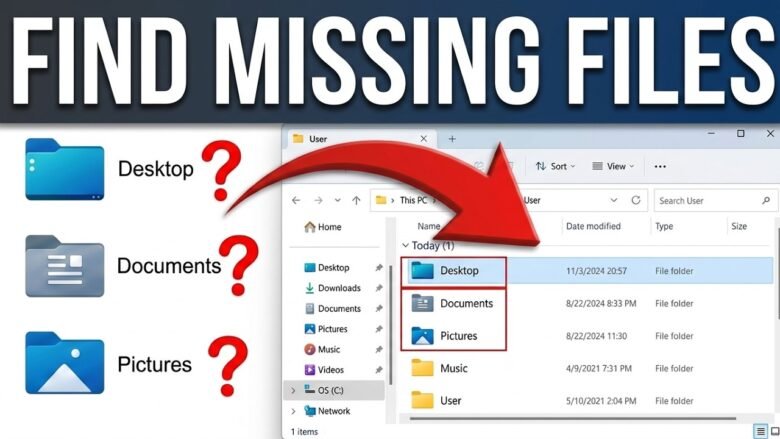
Realizing that an important document or precious family photo is completely missing from your computer is incredibly stressful. Suddenly, you cannot find the presentation you worked on all night. Furthermore, searching through your messy desktop folders yields absolutely no results. This terrifying situation makes many people panic immediately. However, a missing file rarely means your precious data is permanently destroyed. In most cases, an accidental mouse drag, a hidden system setting, or a cloud syncing rule causes this exact problem.
Therefore, you must investigate the missing file using a safe, step-by-step approach. First, we will check your recent activity logs to see if the file was simply moved. Next, we will perform a deep system search using advanced parameters. Then, we will verify your hidden storage locations and cloud backup bins. Finally, we will use built-in Windows tools to determine if the file was actually deleted. Consequently, this detailed method will help you locate your lost data instantly. In addition, it completely prevents you from downloading dangerous third-party software unnecessarily.
Official Reference: Find your documents in Windows 11 — Microsoft Support
Step 1: Check the Quick Access and Recent Files List
Often, users accidentally drag and drop a file into a completely random folder while rushing. As a result, the file is not actually deleted at all. It is simply hiding in a different directory. Fortunately, Windows actively records every single file you open or modify. Therefore, checking your “Recent Files” list is the absolute best way to find a misplaced document and discover its new location.
To check your recent file history safely:
- First, press the Windows Key + E together to open File Explorer directly.
- Next, look at the left sidebar menu and click on Home or Quick Access.
- Then, scroll down to the bottom of the main window to find the Recent section.
- After that, search the list for the specific name of your missing file.
- Next, right-click the found file and select Open file location.
- Finally, look at the top address bar to see exactly which folder it was moved into.
*Verification:* A new folder window will open, showing you the exact physical location of the file. Consequently, you can simply cut and paste the document back to its correct home.
Official Reference: Customize Quick Access and Recent Files — Microsoft Support
Step 2: Perform an Advanced Windows System Search
If the file does not appear in your recent history, you must search your entire hard drive. However, the basic Windows search bar is sometimes too slow or inaccurate. Therefore, you must use advanced search operators. These special text commands force Windows to search specific file types across every single hidden partition.
To perform an advanced deep search properly:
- First, open File Explorer and click on This PC in the left sidebar.
- Next, click inside the search box located in the top-right corner of the window.
- Then, type the file extension directly (For example, type
ext:.docxfor Word documents orext:.jpgfor photos). - After that, add a keyword if you remember it (For example, type
ext:.pdf invoice). - Next, click the Search Options tab at the top and check the box for Subfolders.
- Finally, wait patiently for the green progress bar to finish scanning your massive hard drive.
*Verification:* The search results will display every matching file on your computer. If the file appears here, it was definitely moved, not deleted. You can check the “Folder path” column to verify its current location.
Official Reference: Search for anything in Windows 11 — Microsoft Support
Step 3: Investigate the Windows Recycle Bin Properly
If the deep search fails, the file was most likely deleted. However, deleted files usually go straight into the Windows Recycle Bin before they disappear permanently. Many people open the bin, see hundreds of random files, and give up immediately. Therefore, you must sort the Recycle Bin carefully to find exactly what you lost.
To inspect your deleted files securely:
- First, double-click the Recycle Bin icon on your main desktop screen.
- Next, click the View tab at the top and select Details to see a structured list.
- Then, click the column header named Date Deleted.
- After that, ensure the small arrow on the header is pointing downwards. This sorts the newest deletions to the very top.
- Next, review the top ten files to see if your missing document is listed.
- Finally, right-click the specific file and select Restore to send it back.
*Verification:* The file will disappear from the Recycle Bin instantly. Consequently, it will reappear in the exact original folder where it lived before the accidental deletion.
Official Reference: Recover lost or deleted files — Microsoft Support
Step 4: Check Cloud Storage and Automatic Deletions
Modern computers automatically synchronize your Desktop and Documents folders with cloud services like Microsoft OneDrive or Google Drive. Unfortunately, these programs sometimes delete local files automatically to save hard drive space. This feature is called “Files On-Demand”. As a result, the file disappears from your local computer but still exists safely on the internet.
To verify your cloud storage settings safely:
- First, look at the system tray in the bottom-right corner of your taskbar.
- Next, click the blue or white OneDrive cloud icon.
- Then, click the Gear icon and select Settings.
- After that, go to the Sync and backup tab.
- Next, click Manage backup to see if your desktop is currently syncing.
- Finally, open your web browser, visit OneDrive.com, and search the online Recycle Bin.
*Verification:* If the file was moved by the cloud, it will have a small blue cloud icon next to it in File Explorer. Simply double-click the file to download a fresh physical copy instantly.
Official Reference: Save disk space with OneDrive Files On-Demand — Microsoft Support
Step 5: Reveal Hidden Files and System Folders
Sometimes, computer viruses or accidental keyboard shortcuts hide your files completely. A hidden file becomes completely invisible, but it still consumes space on your hard drive. Therefore, you must force Windows to reveal every single hidden item to ensure your file is not simply wearing a digital disguise.
To reveal hidden files properly:
- First, open File Explorer from your taskbar.
- Next, click on the View tab located at the very top menu bar.
- Then, look for the Show option in the drop-down list.
- After that, check the box directly next to Hidden items.
- Next, navigate back to your original folder.
- Finally, look carefully for files with slightly faded or transparent icons.
*Verification:* If you spot a faded file, right-click it and select Properties. Then, uncheck the “Hidden” attribute box and click OK. The file icon will become solid and permanently visible again.
Official Reference: View hidden files and folders in Windows — Microsoft Support
Step 6: Restore Using the Previous Versions Feature
If you have confirmed that the file is not hidden, not in the Recycle Bin, and not moved, it was definitely deleted permanently. However, you can still time-travel to rescue it. Windows includes a brilliant hidden backup feature called File History. If this feature was active, you can restore the entire parent folder to exactly how it looked yesterday.
To restore a previous file version safely:
- First, open File Explorer and navigate to the folder where your file used to live.
- Next, right-click anywhere on the empty white space inside that specific folder.
- Then, select Properties from the drop-down menu.
- After that, click on the Previous Versions tab at the top of the new window.
- Next, look at the list of folder backups organized by date and time.
- Finally, select a date from before you lost the file and click Restore.
*Verification:* A quick progress window will appear. Afterward, your deleted file will instantly reappear inside the folder, exactly as you left it.
Official Reference: Restore files or folders using File History — Microsoft Support
What Not to Do When You Lose a File
Please avoid these highly dangerous mistakes to protect your invisible data from permanent destruction:
- Do not save any new files, download massive movies, or install new software on your computer. Your deleted file still secretly exists on the hard drive until new data overwrites it. Writing new data will destroy the lost file permanently.
- Do not download random, unknown “Data Recovery” software from untrusted websites. These programs are often massive scams that infect your PC with dangerous ransomware viruses.
- Also, do not restart your computer constantly. Heavy background processes might overwrite your deleted file during the intensive boot-up sequence.
- Finally, do not run a disk defragmentation tool. Defragmenting reorganizes data completely, which will wipe out any trace of your deleted document forever.
Official Reference: Keep your computer secure at home — Microsoft Security
Frequently Asked Questions
How can I tell if a file was permanently deleted?
If you press the Shift + Delete keys together, Windows skips the Recycle Bin completely. Furthermore, if you delete a file from an external USB flash drive, it is permanently deleted instantly. In these specific scenarios, the file will not appear in the Recycle Bin. You must use the Windows File Recovery tool to rescue the data before it is overwritten.
Official Reference: Windows File Recovery tool official guide — Microsoft Support
Why did Windows automatically delete my downloaded file?
Usually, this happens because Windows Defender flags the downloaded file as a severe security threat. If a file contains malware, your antivirus will instantly quarantine or delete it without asking for your permission. Therefore, if you completely trust the file source, you must open Windows Security, navigate to the Protection History, and manually restore the quarantined file.
Official Reference: Stay protected with Windows Security — Microsoft Support
Does emptying the Recycle Bin mean the file is gone forever?
No, they are not permanently gone immediately. When you empty the Recycle Bin, Windows simply deletes the digital address marker for that specific file. The actual physical data remains perfectly intact on your hard drive. However, the space is officially marked as “Available” for new software. Therefore, if you act very quickly, specialized recovery software can still rescue the raw data easily.
Official Reference: Understand data overwrite processes — Microsoft Learn
Final Thoughts and Official Resources
In conclusion, panicking over a missing file is completely unnecessary. First, always search your Quick Access history and use advanced search operators to see if the file was simply moved. Next, check your cloud storage settings and reveal hidden system folders securely. Finally, use the built-in Windows File History feature if the file was actually deleted. By following these exact safe steps, you will easily locate your lost documents without risking your computer’s health.