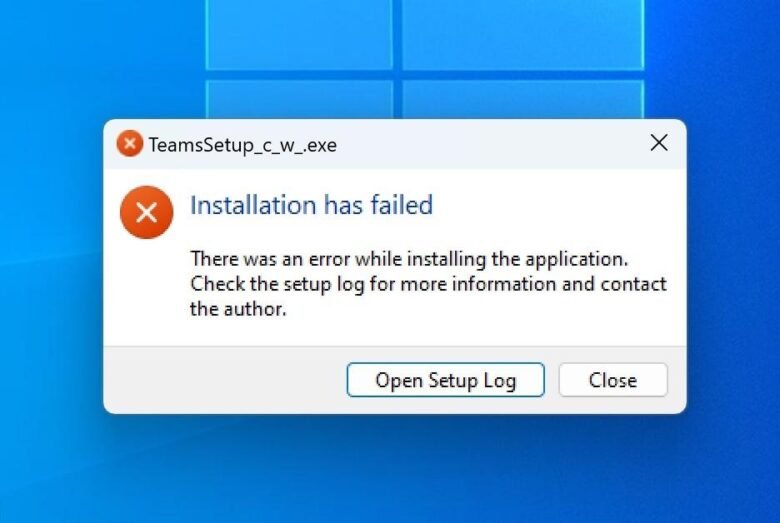
Downloading a brand-new software application only to see a terrifying installation error is incredibly frustrating. Suddenly, your screen displays a confusing message like “Error 1603” or “Access Denied”. Furthermore, the progress bar completely freezes, and your computer refuses to copy the necessary files. This annoying situation makes many people panic immediately. Often, users make the dangerous mistake of disabling their antivirus completely to force the installation. However, a blocked installer rarely means you must expose your computer to severe malware threats.
Therefore, you must troubleshoot this digital roadblock using a completely safe, step-by-step approach. First, we will grant the installer proper administrative rights. Next, we will clear out corrupted temporary extraction folders safely. Then, we will restart the core background installation services. Finally, we will whitelist the application carefully without turning off your primary firewall. Consequently, this detailed method will force your software to install perfectly. In addition, it completely prevents you from accidentally downloading hidden viruses during the repair process.
Official Reference: Fix problems that block programs from being installed — Microsoft Support
Step 1: Run the Software Installer as an Administrator
Windows protects your critical system folders (like “Program Files” and “System32”) with strict security locks. Standard user accounts cannot write new data into these protected areas. Consequently, if you double-click an installer normally, Windows instantly blocks it from copying files. Therefore, you must manually elevate your digital permissions to bypass this basic security lock safely.
To grant the installer temporary administrative rights:
- First, locate the downloaded software installer file (usually an `.exe` or `.msi` file) in your Downloads folder.
- Next, right-click directly on the installer file to open the context menu.
- Then, click on the option labeled Run as administrator featuring a small blue and yellow shield icon.
- After that, wait for the User Account Control (UAC) prompt to appear on your screen.
- Finally, click Yes to grant the program secure, elevated permission to modify your hard drive.
*Verification:* The installation wizard will launch immediately. You will no longer see any “Access Denied” or “Insufficient Privileges” error messages during the setup process.
Official Reference: Understand Administrator permissions in Windows — Microsoft Support
Step 2: Clear the Hidden Windows Temp Folder
Software installers must extract highly compressed data before they can actually copy it to your hard drive. Consequently, they use the Windows “Temp” folder as a digital waiting room. Unfortunately, this waiting room often becomes completely full of corrupted files from previous failed installations. Therefore, you must clear this hidden folder to give your new installer a clean workspace.
To flush your corrupted temporary files securely:
- First, press the Windows Key + R simultaneously to open the Run dialog box.
- Next, type exactly
%temp%into the text box and press Enter. - Then, a new File Explorer window will open showing hundreds of hidden temporary files.
- After that, press Ctrl + A to highlight every single item in this folder.
- Next, press Shift + Delete to permanently erase the corrupted junk data.
- Finally, click Skip if Windows says a specific file is currently in use by another program.
*Verification:* The massive folder will empty almost entirely. Afterward, launch your software installer again. It will extract its necessary setup files incredibly fast without crashing.
Official Reference: Disk cleanup and temporary files management — Microsoft Support
Step 3: Restart the Windows Installer Background Service
Windows uses a secret background engine called “msiexec” to handle software installations. Sometimes, this crucial engine freezes or crashes silently during a previous Windows update. As a result, it completely refuses to process any new software installations. Restarting this hidden background service forces the engine to wake up and rebuild its digital pathways.
To restart the installation engine safely:
- First, press the Windows Key + R to open the Run dialog box once again.
- Next, type exactly
services.mscand press Enter to open the Services dashboard. - Then, scroll down the long alphabetical list until you find the Windows Installer service.
- After that, right-click the Windows Installer name and select Properties.
- Next, click the Start button if the service is currently stopped.
- Finally, click Apply, close the window, and attempt your installation again.
*Verification:* The “Status” column next to the Windows Installer will proudly display “Running”. Consequently, your computer will successfully unpack complex `.msi` software packages.
Official Reference: Troubleshoot Windows Installer issues — Microsoft Learn
Step 4: Allow the App Through Controlled Folder Access
Windows Security includes a brilliant anti-ransomware feature called Controlled Folder Access. This strict feature prevents unknown programs from modifying your Documents or Desktop folders. However, it sometimes blocks perfectly safe software installers by mistake. Therefore, instead of turning off your antivirus entirely, you must add the installer to a secure whitelist.
To whitelist your application safely:
- First, click the Start button, type Windows Security, and press Enter.
- Next, click on Virus & threat protection on the main security dashboard.
- Then, scroll down to the bottom and click on Manage ransomware protection.
- After that, click the blue link labeled Allow an app through Controlled folder access.
- Next, click the Add an allowed app button and select Recently blocked apps.
- Finally, find your specific installer in the list and click the plus (+) icon to allow it permanently.
*Verification:* The installer will now have an official VIP pass through your firewall. Consequently, it can safely place shortcut icons on your desktop without triggering annoying security alerts.
Official Reference: Allow an app to access controlled folders — Microsoft Support
Step 5: Use the Official Microsoft Install Troubleshooter
Have you tried all the manual steps without any success? Sometimes, broken registry keys from previously uninstalled software block new installations completely. Microsoft knows about this specific problem. Therefore, they created a powerful, downloadable tool to hunt down and destroy these corrupted registry locks automatically.
To fix deep registry blocks securely:
- First, open your web browser and search for the Microsoft Program Install and Uninstall Troubleshooter.
- Next, download the official tool directly from the secure Microsoft Support website.
- Then, double-click the downloaded file and click Next on the welcome screen.
- After that, select the Installing option when asked what kind of problem you have.
- Next, select your specific problematic program from the generated list (or select “Not Listed”).
- Finally, allow the tool to scan your registry and apply the necessary fixes automatically.
*Verification:* The troubleshooter will display a final window showing a green checkmark with the word “Fixed”. As a result, the hidden registry block is completely gone, and you can install your software normally.
Official Reference: Download the Program Install Troubleshooter — Microsoft Support
Step 6: Check for Hard Drive Space and Architecture Mismatch
Finally, your software will fail immediately if your hard drive is completely full. Furthermore, it will crash if you attempt to install a 64-bit application on an older 32-bit operating system. An architecture mismatch creates a massive digital language barrier. Therefore, verifying your system specifications is a critical final check.
To verify your system specifications easily:
- First, open File Explorer and click on This PC. Verify that your Local Disk (C:) has at least 5 Gigabytes of free space.
- Next, right-click the Start button and select System.
- Then, look closely at the System type category under the Device Specifications heading.
- After that, check whether it says “64-bit operating system” or “32-bit operating system”.
- Finally, ensure you downloaded the correct matching installer version from the software developer’s website.
*Verification:* By downloading the correct 64-bit or 32-bit version, the installer will launch perfectly. Consequently, you will never see the “This app can’t run on your PC” error message again.
Official Reference: 32-bit and 64-bit Windows FAQ — Microsoft Support
What Not to Do When Software Fails to Install
Please avoid these highly dangerous mistakes to protect your personal computer from severe operating system damage:
- Do not disable Windows Defender Real-Time Protection completely. Turning off your shield is incredibly dangerous. Instead, use the Controlled Folder Access whitelist method explained in Step 4.
- Do not download random `.dll` files from untrusted third-party websites to fix “Missing DLL” errors. These files are massive traps that contain hidden spyware.
- Also, do not use third-party “Registry Cleaner” software. These programs are usually scams that actually delete vital system files and cause more frequent crashes.
- Finally, do not ignore bright red SmartScreen warnings. If Windows strongly warns you that a file is malicious, you should delete the installer immediately.
Official Reference: Keep your computer secure at home — Microsoft Security
Frequently Asked Questions
What does “Error 1603: A fatal error occurred during installation” mean?
Error 1603 is a very common and frustrating Windows installer message. Usually, this specific error means that the installation folder is encrypted, or your Temp folder is completely full. First, you should clear your hidden Temp files as demonstrated in Step 2. If that fails, install the software to a completely different folder, such as your secondary D: drive.
Official Reference: MSI installation error 1603 — Microsoft Learn
Why does Windows say “Another installation is already in progress”?
This confusing message happens when the Windows Installer background engine gets stuck on a previous task. Even if you closed the previous window, the invisible engine is still spinning in the background. To fix this instantly, simply restart your computer. A full reboot flushes the memory and resets the installation engine completely.
Official Reference: Troubleshoot Windows Installer issues — Microsoft Learn
Can I install software in Safe Mode?
By default, the Windows Installer service is completely disabled when you boot into Safe Mode. Therefore, you cannot install or uninstall standard `.msi` programs in Safe Mode easily. You must use the normal Windows desktop environment to manage your software installations properly.
Official Reference: Start your PC in safe mode — Microsoft Support
Final Thoughts and Official Resources
In conclusion, fixing stubborn software installation errors is a very logical process that never requires turning off your security. First, always run the installer as an administrator to grant proper file permissions. Next, clear your corrupted Temp folder and restart the Windows Installer service safely. Finally, use the official Microsoft Troubleshooter to fix deep registry blocks. By following these exact safe steps, you will install your new software smoothly without risking your computer’s health.