
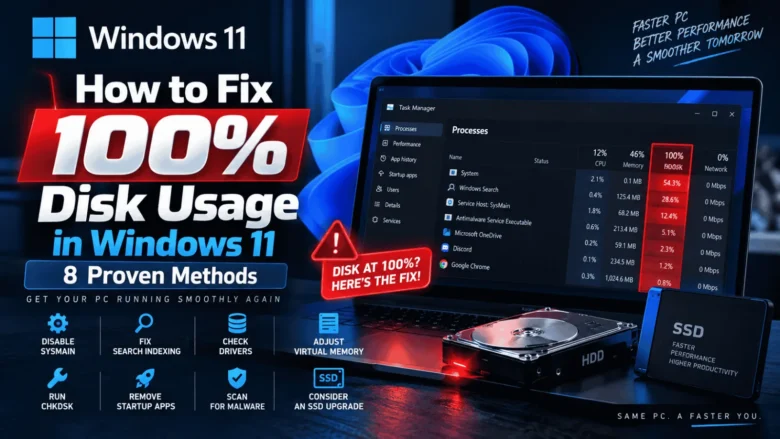
When a Windows laptop or desktop starts lagging, stuttering during video calls, or spinning its cooling fans at maximum speed while sitting on the desktop, most people assume they need a new processor or an expensive RAM upgrade. In reality, severe Windows slowdowns rarely happen because your hardware suddenly wore out overnight. Instead, a single …

Application crashes in Windows 10 and Windows 11 usually trace back to corrupted system DLLs, outdated GPU drivers, or memory allocation conflicts between background services. Instead of reinstalling your entire operating system, you can pinpoint the exact faulting module in minutes using built-in Windows diagnostic tools like Event Viewer and Reliability Monitor. Official Reference: Fix …

Windows 10 and Windows 11 quietly accumulate gigabytes of hidden update caches, delivery optimization logs, and temporary system snapshots on your primary C: drive over time. By targeting these redundant system directories with Storage Sense and built-in cleanup utilities, you can reclaim 20 GB to 50 GB of space without touching a single personal document …
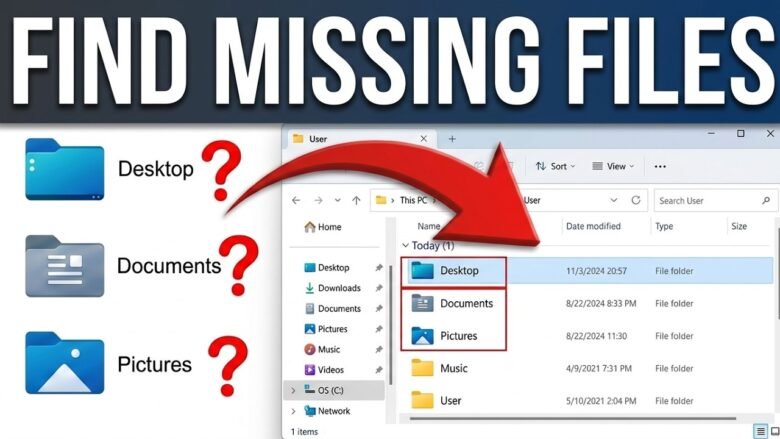
Misplaced documents in Windows are far more often hidden inside secondary user profiles, OneDrive sync folders, or temporary AppData directories than permanently erased from your storage drive. Checking your Windows Search index settings, shadow volume copies, and hidden folder attributes reveals whether a file was accidentally moved or requires recovery. Step 1: Check the Quick …
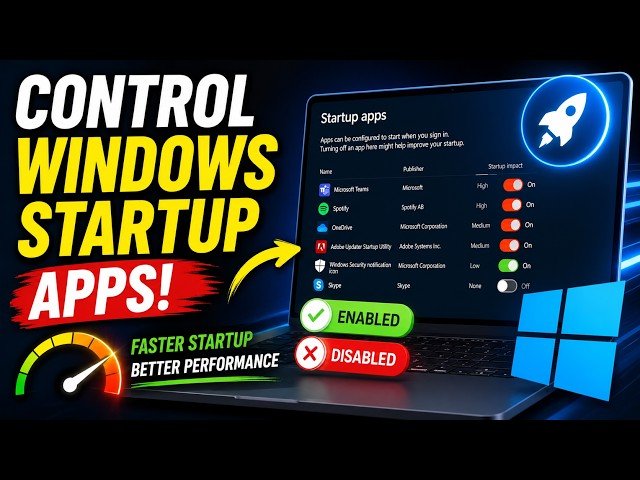
Boot times on Windows PCs degrade gradually as third-party installers register background updaters, cloud sync clients, and tray utilities to launch alongside the operating system kernel. Auditing the Task Manager Startup Apps tab lets you measure the exact millisecond BIOS impact of each program and disable non-essential launchers safely. Step 1: Open the Task Manager …
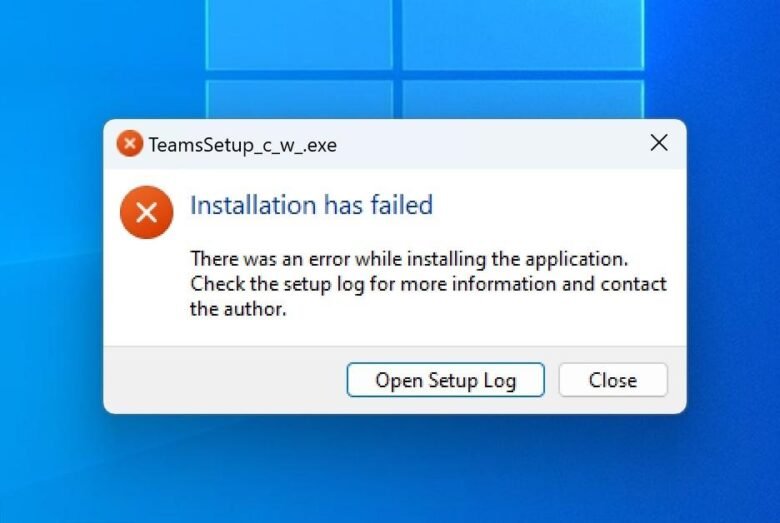
Windows Installer error codes like 1603, 2503, and ‘Access Denied’ typically occur when the MSIExec service encounters locked temporary folders, damaged Visual C++ redistributables, or restricted NTFS file permissions. Resolving these underlying package manager bottlenecks allows new software to install cleanly without turning off Windows Defender or firewall protections. Step 1: Run the Software Installer …
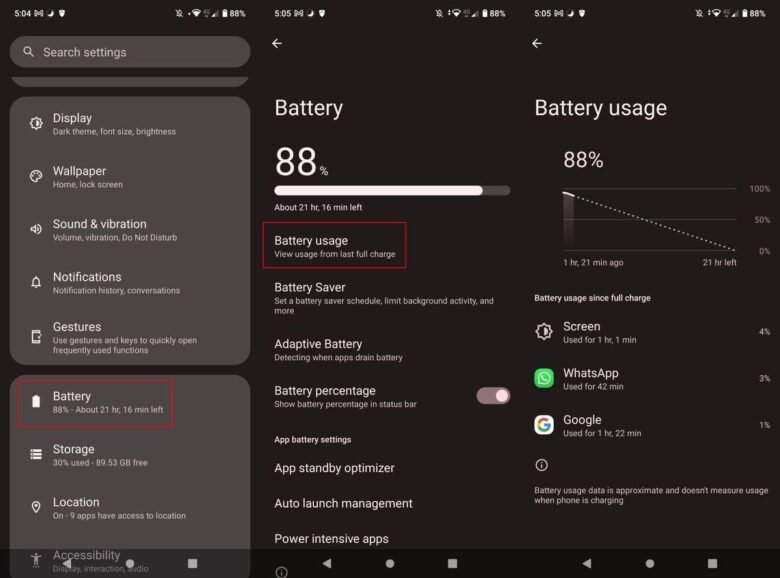
Healthy Android smartphones should lose no more than 3% to 5% of battery capacity during eight hours of standby sleep. When a phone drops 30% or more overnight, rogue background wakelocks, weak cellular signal hunting, or continuous location polling are preventing the processor from entering Android’s deep Doze sleep state. Step 1: Inspect the Built-in …
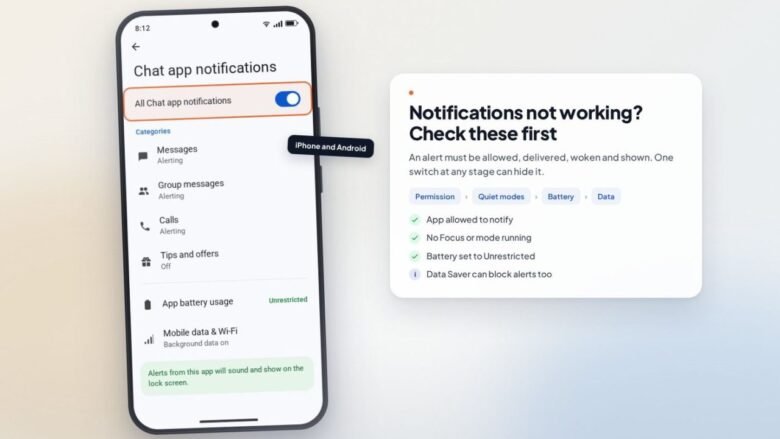
Delayed or missing push alerts on Android rarely result from a single mute toggle; modern versions of Android layer per-app notification channels on top of Adaptive Battery restrictions and background data savers. Inspecting both system-level Do Not Disturb schedules and individual app battery optimization flags restores real-time message delivery. Step 1: Inspect Individual App Notification …
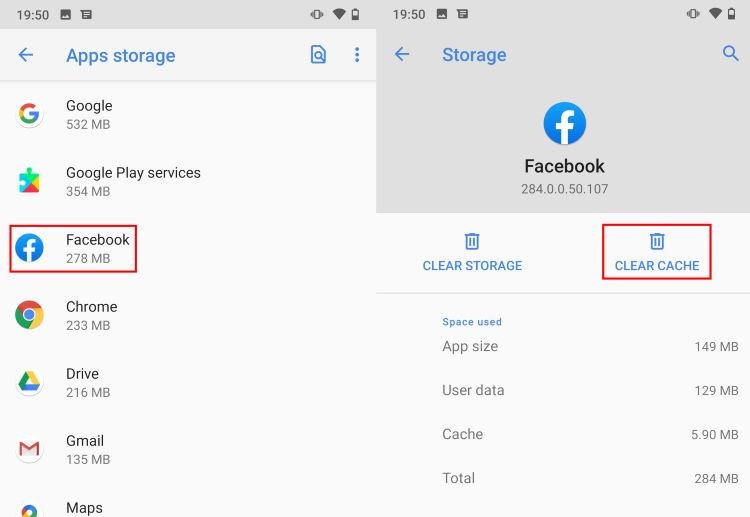
Android distinguishes strictly between temporary cached media (‘Clear Cache’) and permanent user credentials or local databases (‘Clear Storage/Data’). Understanding the difference between these two storage controls lets you remove gigabytes of stale browser thumbnails and social media video buffers while keeping your active logins and chat histories intact. Step 1: Understand the Difference Between Cache …

Android’s Permission Manager provides a central dashboard showing every installed application that holds active privileges for your camera, microphone, and GPS sensors. Reviewing this access log—and switching permissions from ‘Allow all the time’ to ‘Only while using the app’—stops background tracking without breaking core app features. Step 1: Open the Android Privacy Dashboard Modern Android …