Turning on your computer and waiting ten minutes for the desktop to load is incredibly frustrating. Suddenly, you are completely late for an important morning video meeting. Furthermore, your computer might freeze the moment you finally click on your web browser. However, a slow startup process rarely means your expensive hardware is permanently broken. In most cases, dozens of hidden background applications are trying to load simultaneously.
Therefore, you must troubleshoot this digital traffic jam using a safe, step-by-step approach. First, we will open the hidden startup manager. Next, we will identify the heaviest applications slowing down your system. Then, we will learn exactly which apps you can disable safely. Finally, we will configure advanced Windows boot settings. Consequently, this detailed method will restore your blazing-fast boot times instantly. In addition, it completely prevents you from accidentally disabling vital audio or security drivers.
Official Reference: Change which apps run automatically at startup — Microsoft Support
Step 1: Open the Task Manager Startup Tab
The Windows Task Manager is your absolute best defense against a slow computer. This built-in utility shows you exactly which programs launch themselves automatically during the boot sequence. Many software developers intentionally program their apps to start silently in the background. Therefore, you must use this specific tool to catch them red-handed.
To access your startup controls safely:
- First, press Ctrl + Shift + Esc on your keyboard simultaneously to open the Task Manager directly.
- Next, click on More details at the bottom if your window looks very small.
- Then, look at the top menu and click on the Startup tab (or the speedometer icon in Windows 11).
- After that, maximize the window to see the entire list of background applications clearly.
- Finally, click on the Status column header to group all the “Enabled” applications together at the top.
*Verification:* You will now see a clean, organized list of every single program that fights for your computer’s attention during startup. Consequently, you are ready to analyze their impact.
Official Reference: Task Manager utility in Windows 11 — Microsoft Support
Step 2: Understand the “Startup Impact” Column
Not all startup applications are equally harmful. Some tiny programs load in a fraction of a second. Conversely, heavy applications can freeze your hard drive for several minutes. Fortunately, Windows measures exactly how much processing power each application consumes during the boot process. Therefore, you must sort the list by its overall impact.
To analyze the performance impact properly:
- First, look at the far-right column inside the Task Manager labeled Startup impact.
- Next, click on this specific column header to bring the heaviest offenders to the top.
- Then, look for any applications labeled as High. These apps add several seconds to your boot time individually.
- After that, identify apps labeled as Medium. These cause noticeable, moderate delays.
- Finally, ignore any applications labeled as Low or None. They do not slow down your computer noticeably.
*Verification:* The heaviest and most demanding applications will now sit at the very top of your screen. As a result, you know exactly which software targets to disable first.
Official Reference: Analyze startup impact metrics — Microsoft Learn
Step 3: Apps You Can Safely Disable (The Safe List)
Now that you can see the heaviest applications, you must decide which ones to turn off. Disabling a startup app does not delete it from your computer. It simply stops the app from running automatically. Consequently, the app will only consume memory when you click its icon manually. Therefore, disabling non-essential software is highly recommended.
You can securely select and disable the following common applications:
- Gaming Clients: Disable Steam, Epic Games Launcher, and EA App. They consume massive amounts of data looking for game updates.
- Communication Tools: Disable Skype, Discord, Zoom, and Microsoft Teams. You should only open these when you actually have a meeting.
- Music and Media: Disable Spotify, iTunes Helper, and CyberLink. They waste vital RAM running silently in your system tray.
- Cloud Storage (If Unused): Disable OneDrive or Google Drive only if you do not actively sync daily work files.
- To disable an app: Right-click its name in the Task Manager and select Disable.
*Verification:* The “Status” column next to these heavy applications will immediately change from Enabled to Disabled. Your computer will ignore them completely during the next boot.
Official Reference: Tips to improve PC performance in Windows — Microsoft Support
Step 4: Apps You Must NEVER Disable (The Danger List)
While disabling heavy software is fantastic, you must be extremely careful. Your computer relies on specific hardware drivers and security programs to function properly. If you disable these core components, your screen might go black, or you might lose your audio completely. Therefore, you must leave certain critical applications alone.
Never disable the following types of essential software:
- Antivirus Software: Never disable Windows Security notification icon, Windows Defender, McAfee, or Norton. Disabling these exposes your computer to instant virus infections.
- Audio Drivers: Do not disable Realtek HD Audio Manager or Waves MaxxAudio. Your speakers and headphones need these to produce sound.
- Graphics Drivers: Leave NVIDIA GeForce Experience, AMD Radeon Software, and Intel Graphics Command Center strictly enabled.
- Touchpad Drivers: Never disable Synaptics Pointing Device or Elan Touchpad. Doing so will freeze your laptop’s built-in mouse completely.
*Verification:* Review your Task Manager list one final time. Ensure that all security programs and hardware drivers still say “Enabled” in the status column.
Official Reference: Keep your computer hardware secure — Microsoft Security
Step 5: Use the Settings App for Alternative Management
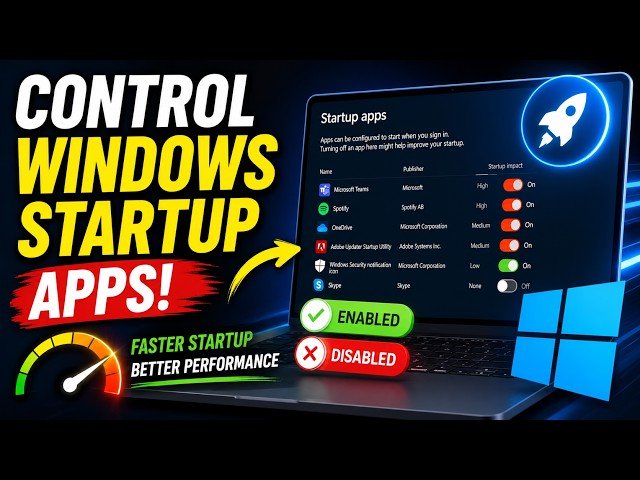
If you find the Task Manager interface slightly confusing, Windows 11 offers a much simpler alternative. Microsoft created a beautifully designed toggle switch menu specifically for beginners. This alternative menu does the exact same job but presents the information in a much clearer, safer format.
To disable apps using the simplified Settings menu:
- First, open the main Settings app using your Windows Start menu.
- Next, click on Apps located in the left sidebar menu.
- Then, click on Startup at the very bottom of the right-side list.
- After that, review the list of applications and their specific “Impact” labels.
- Next, click the blue toggle switch next to any non-essential app to turn it Off.
- Finally, close the Settings window to save your new configuration automatically.
*Verification:* Restart your computer right now. You will immediately notice that the desktop appears much faster, and the mouse cursor does not show the annoying blue loading circle.
Official Reference: Manage startup apps via Settings — Microsoft Support
Step 6: Enable the Hidden “Fast Startup” Feature
Have you disabled all the junk applications, but your computer still feels sluggish? Fortunately, Windows includes a brilliant hidden power setting called Fast Startup. When this feature is active, Windows does not actually shut down completely. Instead, it saves your core system files into a deep hibernation state. As a result, the next boot process becomes incredibly fast.
To enable the rapid boot feature securely:
- First, press the Windows key, type Control Panel, and press Enter.
- Next, click on Hardware and Sound, then click Power Options.
- Then, click the link on the left side that says Choose what the power buttons do.
- After that, click the blue shield icon labeled Change settings that are currently unavailable.
- Next, scroll down and check the box directly next to Turn on fast startup (recommended).
- Finally, click the Save changes button at the very bottom of the window.
*Verification:* Shut down your computer completely. When you press the power button again, the Windows logo will appear, and the desktop will load almost instantly.
Official Reference: How Windows Fast Startup works — Microsoft Learn
What Not to Do When Fixing a Slow Startup
Please avoid these highly dangerous mistakes to protect your personal computer from severe operating system damage:
- Do not download third-party “Boot Optimizer” or “PC Speedup” software. These programs are massive scams that actually inject harmful spyware into your system.
- Do not open the “MSConfig” (System Configuration) tool and disable core Microsoft Services. Disabling essential services will cause an instant Blue Screen of Death (BSOD).
- Also, do not manually delete random files inside your Windows folder hoping to speed things up. This action will destroy your operating system completely.
- Finally, do not ignore failing hardware. If your computer makes a loud clicking noise during boot, your hard drive is dying physically. No software trick can fix a physically broken drive.
Official Reference: Keep your computer secure at home — Microsoft Security
Frequently Asked Questions
Why does my PC still boot slowly after disabling every single app?
Usually, this extremely frustrating problem is caused by outdated hardware. If your computer uses an old, mechanical spinning hard drive (HDD), it will always boot slowly regardless of your software settings. Therefore, the absolute best way to speed up an old computer is to upgrade the hardware to a modern Solid State Drive (SSD). An SSD reads data ten times faster than an old HDD.
Official Reference: Hardware upgrades for PC performance — Microsoft Support
Will disabling a startup app uninstall it from my computer?
No, absolutely not. Disabling an application in the Task Manager only stops the automatic launch process. The software remains perfectly installed on your local hard drive. Consequently, whenever you want to use the application, you simply double-click its icon on your desktop, and it will run normally.
Official Reference: Uninstall vs disabling apps — Microsoft Support
What is “svchost.exe” and can I disable it?
You must never disable svchost.exe. This specific program stands for “Service Host”. It is a crucial core component of the Windows operating system. Windows uses this file to run dozens of essential background network and security tasks simultaneously. Therefore, forcing it to close will immediately crash your computer.
Official Reference: Understanding the Service Host process — Microsoft Learn
Final Thoughts and Official Resources
In conclusion, fixing a sluggish computer startup is a very simple process that does not require expensive repair shops. First, always open the Task Manager to identify the apps with a “High” startup impact. Next, safely disable unnecessary chat and gaming clients. Finally, ensure your hardware drivers remain fully enabled and turn on Fast Startup. By following these exact safe steps, you will enjoy a lightning-fast boot experience every single morning.