When a Windows laptop or desktop starts lagging, stuttering during video calls, or spinning its cooling fans at maximum speed while sitting on the desktop, most people assume they need a new processor or an expensive RAM upgrade. In reality, severe Windows slowdowns rarely happen because your hardware suddenly wore out overnight. Instead, a single background service, a stuck search index database, an unthrottled browser helper process, or a faulty hardware driver is usually monopolizing one of three core system resources: Processor (CPU), Physical Memory (RAM), or Storage Input/Output (Active Disk Time).
Because all three bottlenecks make your computer feel sluggish in slightly different ways, applying random “speed up Windows” tips often wastes time without fixing the actual culprit. For example, deleting personal files will not stop a runaway svchost.exe service from pinning your CPU at 95%, and closing browser tabs will not fix a 100% Disk Usage spike caused by a corrupted Windows Search database.
This step-by-step diagnostic guide walks you through how to read your system metrics like an experienced technician, pinpoint the exact process or service causing the bottleneck, and fix high CPU, RAM, or disk usage safely using official built-in utilities documented in Microsoft Support’s System Configuration Tools Guide and Windows Client Performance Troubleshooting.
Quick Diagnostic Matrix: Is Your Bottleneck CPU, RAM, or Disk?
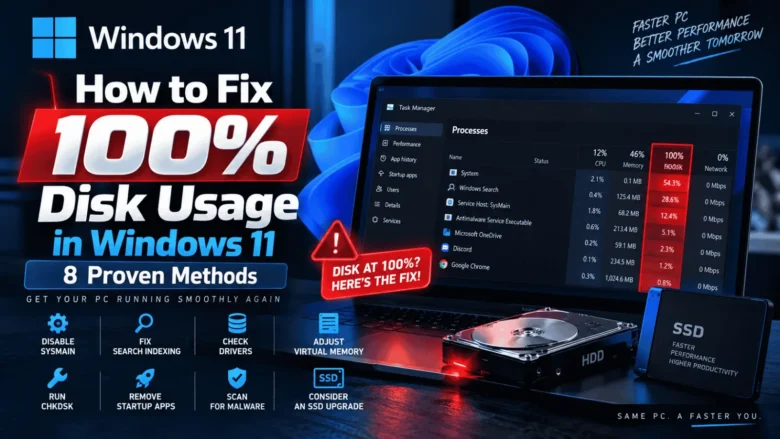
Before changing any system settings, press Ctrl + Shift + Esc to open the Windows Task Manager and look at the percentage headers at the top of the Processes tab. Compare what you see on your screen with the diagnostic matrix below to identify which subsystem is actually choking your PC:
| Bottleneck Type | What You Feel in Real Use | What Task Manager Shows | Most Common Culprits | Go Directly To |
| High CPU Usage (85%–100% Sustained) | Cooling fans roar continuously, mouse cursor stutters, audio crackles, and typing lags across every window. | CPU column stays above 85% for more than 3 minutes when you are not gaming, rendering video, or installing updates. | Stuck Service Host (svchost.exe) task, TiWorker.exe update loop, runaway browser renderer, or thermal throttling locking clock speed below 1.0 GHz. |
Steps 1, 2 & 4 |
| 100% Active Disk Usage (With Low Transfer Speed) | Opening a folder, launching an app, or right-clicking the desktop takes 10–30 seconds, even though your C: drive still has plenty of free space. | Disk column sits at 99%–100%, even while actual read/write speed is only 1–15 MB/s, and Average Response Time exceeds 50 ms. | Bloated SearchIndexer.exe database, SysMain (Superfetch) thrashing an older drive, or background Windows Update staging. |
Steps 1, 3 & 6 |
| High RAM / Memory Exhaustion (90%+ Used) | Browser tabs reload from scratch every time you switch back to them, apps flash black or crash silently, and switching windows freezes for several seconds. | Memory stays above 90%, or Non-paged pool in the Performance tab exceeds 1.5 GB, forcing constant swapping to the disk pagefile. | Multi-process web browsers with dozens of extensions, Electron desktop apps (Discord, Slack, Teams), or a kernel driver memory leak. | Steps 4, 5 & 6 |
Common Windows Background Processes: What They Do and Whether They Are Safe
When you sort Task Manager by CPU, Memory, or Disk, you will often see unfamiliar system names at the top of the list. Never blindly click End task on a system process without knowing its role. Use this reference table to tell normal background work apart from a stuck service:
| Process Name in Task Manager | Real File Name | What It Actually Does | When High Usage Is Normal | When You Should Fix It |
| Service Host: SysMain | svchost.exe (SysMain) |
Preloads frequently used apps into standby RAM so they launch faster. | During the first 5–10 minutes after booting your PC or launching a heavy app. | If it pins Disk usage at 90%–100% continuously for more than 20 minutes on an older SATA SSD or mechanical hard drive. |
| Windows Modules Installer Worker | TiWorker.exe |
Installs Windows Updates, compresses old update files, and modifies system packages. | On Patch Tuesday or immediately after downloading a cumulative Windows Update (usually 15–40 minutes). | If it stays above 50% CPU or Disk for more than 2 hours with no active downloads in Settings > Windows Update. |
| Microsoft Windows Search Indexer | SearchIndexer.exe |
Catalogs file names and document contents so Start menu and File Explorer searches return instant results. | Right after copying thousands of new files or syncing a large OneDrive/Dropbox folder. | If it consumes 30%+ CPU or 100% Disk every time your PC goes idle because its Windows.edb index file is bloated or corrupted. |
| Antimalware Service Executable | MsMpEng.exe |
Runs Microsoft Defender real-time malware protection and scheduled background scans. | Briefly when downloading an installer, extracting a .zip archive, or running a Quick Scan. |
If it constantly uses 25%+ CPU because it is scanning its own cache folder or conflicting with a second third-party antivirus tool. |
| Desktop Window Manager | dwm.exe |
Renders the Windows 10/11 desktop interface, window transparency effects, and animations using your GPU and RAM. | Uses 80 MB to 300 MB of RAM and 1%–5% CPU/GPU during normal window movement. | If dwm.exe climbs above 1,500 MB (1.5 GB) of RAM—a known sign of an outdated integrated or dedicated graphics driver. |
| System Interrupts | Hardware Abstraction Layer | Represents hardware devices (USB controllers, network cards, audio chips) asking the CPU for attention. | 0.1% to 2% CPU during normal activity. | If System Interrupts exceeds 10%–20% CPU continuously, pointing to a malfunctioning USB peripheral, bad network driver, or outdated BIOS. |
Step 1: Read Task Manager and Resource Monitor Like a Technician
Standard Task Manager percentages only show part of the story. For example, a drive can show 100% Active Time while transferring just 2 MB/s if dozens of tiny background requests are backed up in a queue. Similarly, 80% Memory usage is harmless if Windows is simply holding standby cache, but crippling if your system is experiencing hundreds of Hard Faults per second (meaning RAM is full and Windows is forced to read active program data from your much slower storage drive).
How to inspect real hardware bottlenecks using built-in tools
- Press Ctrl + Shift + Esc on your keyboard to open Task Manager directly (if it opens in compact view, click More details at the bottom).
- Click the Performance tab on the left sidebar (the heart-rate monitor icon in Windows 11).
- Click CPU and check two critical numbers at the bottom: Utilization and Speed.
- Technician tip: If Utilization is low (e.g., 25%) or pinned at 100%, but Speed is stuck below 0.80 GHz – 1.00 GHz, your laptop is either stuck in a low-power state or experiencing thermal throttling from dust buildup in the cooling vents.
- Click Memory in the left pane and examine In use (Compressed), Cached, and Non-paged pool at the bottom:
- Cached memory is free to be reclaimed instantly whenever an app needs it—high cached memory is good.
- Non-paged pool should normally sit between 200 MB and 700 MB. If it exceeds 1.5 GB to 4 GB, a hardware driver has a memory leak (covered in Step 5).
- Click Disk 0 (C:) and look at Active time alongside Average response time:
- On a healthy NVMe or SATA SSD, Average response time stays under 2 ms to 15 ms. If it spikes above 100 ms to 1,000+ ms, a background process is saturating your storage queue.
- To see the exact file or process causing disk or memory delays, click the three-dot menu (
...) at the top right of Task Manager (or the bottom of the Performance tab in Windows 10) and select Resource Monitor (you can also press Windows Key + R, typeresmon, and press Enter). - Inside Resource Monitor:
- Open the Memory tab and sort the top table by Hard Faults/sec. Any process consistently generating more than 50–100 Hard Faults/sec is actively starving your system of RAM.
- Open the Disk tab, expand Disk Activity, and sort by Total (B/sec) or Response Time. Here you can see the exact file path (
C:\ProgramData\...orC:\Windows\...) being hammered in real time.
- Verification Check: Write down the exact process name at the top of the CPU, Memory, or Disk list and the file path shown in
resmon.exe. You now have concrete diagnostic proof of what is slowing down your PC rather than guessing. - Official Reference: System configuration tools in Windows — Microsoft Support
Step 2: Unpack “Service Host (svchost.exe)” Groups to Find the Real Culprit
One of the most common mistakes users make is seeing Service Host: Local System or Service Host: Network Service using 40% CPU or 80% Disk in Task Manager and trying to force-close it. svchost.exe (Service Host) is a legitimate Windows container process that hosts dozens of individual background services (such as Windows Update, Audio, Bluetooth, Diagnostic Policy, and DNS Client). Force-killing a core svchost.exe container can immediately trigger a Blue Screen of Death (BSOD) or mute your system audio and networking.
Instead of ending the whole container, isolate the single misbehaving sub-service inside it.
How to identify and restart a stuck Windows sub-service safely
- Press Ctrl + Shift + Esc to open Task Manager and stay on the Processes tab.
- Locate the Service Host entry sitting at the top of the CPU, Memory, or Disk column.
- Click the small chevron arrow (
>) to the left of that Service Host entry to expand the exact sub-services running inside it. - Right-click the specific sub-service inside the group (common culprits include Diagnostic Policy Service, Connected User Experiences and Telemetry, Windows Update, or Print Spooler) and click Go to details.
- Task Manager will jump to the Details tab and highlight the exact
svchost.exeProcess ID (PID). Right-click that highlighted row and select Go to service(s). - Windows will switch to the Services tab with the exact internal service name highlighted (for example,
DPSfor Diagnostic Policy Service orDiagTrackfor Connected User Experiences). - Right-click the highlighted service and select Restart (do not choose Stop on critical networking or security services).
- Verification Check: Return to the Processes tab and watch the CPU and Disk columns for 60 seconds. If the spike was caused by a hung diagnostic or update loop, CPU utilization will drop back down to 2%–8% at idle.
- Official Reference: Tips to improve PC performance in Windows — Microsoft Support
Step 3: Fix 100% Disk Usage Caused by Stuck Search Indexing and SysMain
If your C: drive still has plenty of free space (if your drive bar is red, first follow our dedicated guide on How to Free Up Disk Space in Windows Without Deleting Important Files?), yet Disk Active Time stays glued at 100%, the problem is almost always input/output queue saturation from Windows Search Indexer (SearchIndexer.exe) or SysMain.
Over months of use, the Windows Search database (Windows.edb) can grow to tens of gigabytes—especially if it accidentally indexes browser caches, game folders, or large archive directories—causing endless disk thrashing.
Part A: Trim and rebuild the Windows Search Index
- Press Windows Key + I to open Settings, click Privacy & security in the left sidebar, and select Searching Windows (on Windows 10, go to Settings > Search > Searching Windows).
- Under Find my files, make sure Classic is selected rather than Enhanced. Enhanced mode indexes your entire C: drive—including temporary app caches and system folders—which heavily taxes disk I/O on everyday laptops.
- Scroll down to ExcludedFolders and click Add an excluded folder. Add any folders containing thousands of small cache or project files that you never search via the Start menu (such as large game installation folders or video editing scratch disks).
- Scroll to the bottom of the same page and click Advanced indexing options to open the classic control panel window.
- Click the Advanced button, locate the Troubleshooting section, and click Rebuild, then select OK.
- Note: Windows will delete the bloated index file and cleanly catalog only your core user folders (Documents, Pictures, Desktop, and Start Menu shortcuts).
Part B: Test disabling SysMain on older SATA SSDs or Hard Drives
If Service Host: SysMain is the specific process pinning your Disk column at 100% in Task Manager:
- Press Windows Key + R, type
services.msc, and press Enter. - Scroll down the alphabetical list and double-click SysMain.
- Click the Stop button and wait 10 seconds for the service status to clear.
- Change the Startup type dropdown menu from Automatic to Manual (or Disabled if your PC uses an older mechanical HDD or budget DRAM-less SSD), then click Apply and OK.
- Verification Check: Open Task Manager > Performance > Disk 0 (C:). Within 2 to 3 minutes of stopping a runaway
SysMainloop or trimming Enhanced indexing, your idle Active time should drop from 100% down to 0%–5%, and Average response time should fall below 10 ms. - Official Reference: Search indexing in Windows — Microsoft Support
Step 4: Stop Browser Helper Processes and Background Apps from Draining RAM and CPU
Modern web browsers (Chrome, Microsoft Edge, Brave, Firefox) and desktop communication apps (Discord, Microsoft Teams, Slack, Spotify) run as multi-process engines. Each open tab, extension, and background notification service runs inside its own isolated process so a single bad webpage does not crash your whole browser. However, poorly coded ad blockers, coupon extensions, or background startup modes can easily consume 4 GB to 8 GB of RAM and 30%+ CPU even after you close the main browser window.
How to isolate hungry browser extensions and disable background sleeping traps
- While your web browser (Chrome or Microsoft Edge) is open, press Shift + Esc on your keyboard. This opens the Browser’s Internal Task Manager—a separate diagnostic window from Windows Task Manager.
- Click the Memory footprint or CPU column header inside the browser Task Manager to sort processes from highest to lowest.
- Look for any row starting with
Extension:orSubframe:that is consuming more than 300 MB of RAM or 10%+ CPU while idle. Remove or disable any extension you do not actively rely on every day. - Next, stop your browser from running invisibly after you close it:
- In Microsoft Edge: Open Edge Settings (
edge://settings/system) and turn OFF “Continue running background extensions and apps when Microsoft Edge is closed”, and turn ON “Save resources with sleeping tabs” (set to put inactive tabs to sleep after 15 minutes). - In Google Chrome: Open Chrome Settings (
chrome://settings/system) and turn OFF “Continue running background apps when Google Chrome is closed”, then openchrome://settings/performanceand turn ON Memory Saver.
- In Microsoft Edge: Open Edge Settings (
- Finally, if non-essential desktop apps (like gaming launchers or chat tools) are launching automatically every time you turn on your PC and eating 2–3 GB of RAM before you even open a document, follow our step-by-step guide on Why Your Windows PC Starts Slowly and Which Startup Apps You Can Safely Disable? to turn off high-impact startup programs safely.
- Verification Check: Close your browser completely and check Windows Task Manager (
Ctrl + Shift + Esc). Verify that zeromsedge.exeorchrome.exeprocesses remain running in the background and that your available physical RAM immediately increases by 1.5 GB to 4 GB. - Official Reference: Performance overview for Windows Client — Microsoft Learn
Step 5: Find Hidden RAM Leaks Using Official Microsoft Sysinternals Tools
What should you do if Task Manager shows 85% to 95% Memory usage, but when you add up all the apps listed in the Processes tab, they only total 2 GB or 3 GB?
This classic mystery happens when a kernel-mode driver (commonly a third-party network traffic manager, RGB lighting controller, virtual audio cable, or outdated storage driver) allocates memory inside the Non-paged pool or Driver Locked memory region and forgets to release it. Standard Task Manager does not show driver-locked memory in the regular app list. To inspect it safely without installing sketchy third-party utilities, Microsoft provides two portable, official engineering tools: RAMMap and Process Explorer.
How to inspect hidden memory allocations with Microsoft RAMMap
- Download the official portable utility from RAMMap — Microsoft Sysinternals (Microsoft Learn), extract the
.zipfolder, and runRAMMap64.exeas an administrator. - On the opening Use Counts tab, look at the Active column across three key rows:
- Process Private: Normal memory used by your open apps and browsers.
- Mapped File (Standby): File cache held by Windows to speed up launches. If Standby memory is huge and causing stutter in heavy apps, click Empty > Empty Standby List in the top menu bar to release cached RAM instantly without closing a single program.
- Nonpaged Pool / Driver Locked: If either of these exceeds 1.5 GB, a hardware driver is leaking memory.
- If your Nonpaged Pool or Driver Locked row is abnormally high, open Device Manager (right-click the Start button and select Device Manager), expand Network adapters, Sound, video and game controllers, and Display adapters, and update your motherboard chipset, audio, and network drivers directly from your laptop or motherboard manufacturer’s official support page.
- For deeper process-level inspection—including seeing which exact DLL file inside a process is spiking CPU threads—you can also run Microsoft’s official Process Explorer — Microsoft Sysinternals (Microsoft Learn), which replaces Task Manager’s summary view with real-time thread and handle diagnostics.
- Verification Check: After updating an outdated network or audio driver and rebooting, open Task Manager > Performance > Memory and confirm that Non-paged pool remains stable between 250 MB and 600 MB even after several hours of heavy use.
- Official Reference: RAMMap Utility Documentation — Microsoft Learn
Step 6: Verify Virtual Memory (Paging File) and Repair Corrupted System Files
When your physical RAM fills up during multitasking, Windows relies on Virtual Memory—a hidden file on your C: drive called pagefile.sys—to hold inactive memory pages so your active programs do not crash. Many outdated internet forum posts advise users to “disable the pagefile to save SSD wear.” Doing so is a major mistake: disabling pagefile.sys causes Windows and modern applications to crash with “Out of Memory” errors even when free physical RAM is still available. (If your apps are already closing unexpectedly, see our companion guide on Why Windows Apps Keep Crashing and How to Troubleshoot the Cause?).
Part A: Ensure Automatic Paging File Management is enabled
- Press Windows Key + R, type
sysdm.cpl, and press Enter to open System Properties. - Click the Advanced tab at the top, then click the Settings… button inside the Performance box.
- In the Performance Options window, click the Advanced tab again and look at the Virtual memory section at the bottom.
- Click Change… and verify that the checkbox at the very top—“Automatically manage paging file size for all drives”—is checked.
- If it was unchecked or set to “No paging file,” check the automatic box, click OK, and restart your PC when prompted.
Part B: Repair corrupted system servicing files causing TiWorker.exe CPU loops
If Windows Modules Installer Worker (TiWorker.exe) or Service Host: Local System keeps spiking CPU and Disk usage every day because a background update is failing to commit, repair the Windows component store using the built-in Deployment Image Servicing and Management (DISM) and System File Checker (SFC) tools:
- Click Start, type
cmd, right-click Command Prompt, and select Run as administrator. - Type the following command to repair the Windows servicing image and press Enter:
DISM.exe /Online /Cleanup-image /Restorehealth - Wait for the progress bar to reach 100.0% (this takes 5 to 10 minutes and uses official Windows Update servers to replace broken component files).
- Once
DISMreports “The restore operation completed successfully”, type the following command and press Enter:sfc /scannow - Wait for verification to reach 100%, then restart your computer normally.
- Verification Check: Open Task Manager > Performance > Memory and check the Committed reading (for example,
5.2 / 18.4 GB). The second number confirms your physical RAM plus your activepagefile.syssafety buffer are both online and healthy. - Official Reference: Troubleshoot problems updating Windows (DISM & SFC) — Microsoft Support
Step 7: Isolate Third-Party Background Conflicts Using a Clean Boot
If your CPU or RAM usage still spikes randomly and you cannot tell which third-party background service (such as a printer monitor, cloud sync client, RGB controller, or game anti-cheat service) is conflicting with Windows, perform a Clean Boot. A Clean Boot starts Windows with only essential Microsoft services running so you can test whether third-party background software is causing the slowdown.
Critical Safety Rule: Never disable Microsoft services inside System Configuration (
msconfig). Disabling core Microsoft services can prevent Windows Hello PIN login, Wi-Fi, or audio from working on restart. Always check the “Hide all Microsoft services” box first!
How to perform a safe Clean Boot in Windows 10 and 11
- Press Windows Key + R, type
msconfig, and press Enter to open the System Configuration utility. - Click the Services tab at the top.
- Crucial Step: Check the box at the bottom-left labeled Hide all Microsoft services first. Confirm that the checkmark is active before touching the list above it.
- Look through the remaining third-party services (such as motherboard utilities, printer updaters, or third-party VPN helpers) and uncheck any non-essential third-party services—or click Disable all to test all third-party services at once (leave your primary antivirus or laptop touchpad driver checked if listed).
- Click Apply, then click OK, and restart your computer.
- Once your PC boots into the Clean Boot environment, open Task Manager (
Ctrl + Shift + Esc) and observe your idle CPU, Memory, and Disk metrics for 10 minutes:- If your idle CPU drops to 1%–4% and Disk drops to 0%–2%, one of the disabled third-party services is the exact cause of your slowdown. Re-enable half of those third-party services in
msconfigat a time until you isolate the single offending program, then uninstall or update that specific software.
- If your idle CPU drops to 1%–4% and Disk drops to 0%–2%, one of the disabled third-party services is the exact cause of your slowdown. Re-enable half of those third-party services in
- Verification Check: After identifying and removing the conflicting third-party utility, open
msconfig> Services, check Hide all Microsoft services, re-enable your remaining trusted third-party services, and reboot normally. - Official Reference: How to perform a clean boot in Windows — Microsoft Support
What Not to Do: 4 Costly Mistakes That Make Windows Slower
When troubleshooting high resource usage, avoid these common traps that frequently damage Windows installations or waste money:
- Never install third-party “RAM Cleaners,” “Memory Boosters,” or “Registry Optimizers”: Freeware utilities promising one-click RAM optimization work by forcefully flushing active program working sets out of RAM and onto your hard drive. While the RAM percentage briefly looks lower for 10 seconds, your PC immediately freezes as soon as you click back into an app because Windows has to reload all that data from the disk.
- Do not delete or modify files inside
C:\Windows\System32orC:\Windows\WinSxSmanually: IfTiWorker.exeorsvchost.exeis using high CPU, deleting files inside the Windows folder will break your operating system. Always use Storage Sense, Disk Cleanup, orDISMinstead. - Do not run two real-time antivirus programs at the same time: Running Microsoft Defender alongside a second third-party antivirus tool often causes a “scanning tug-of-war,” where both security tools lock and scan the exact same temporary file simultaneously—pegging Disk and CPU usage at 100%.
- Do not buy new hardware before checking thermal throttling and disk response time: If a 2-year-old laptop feels slow because dust is blocking the fan heatsink (locking the CPU at 0.79 GHz) or because a single background indexer is stuck in a loop, spending money on a new PC or repair shop visit is completely unnecessary.
Frequently Asked Questions (FAQ)
Is 50% to 65% RAM usage normal on Windows 11 when no apps are open?
Yes. On a Windows 10 or 11 computer with 8 GB or 16 GB of RAM, using 40% to 65% of memory at idle is completely normal and healthy. Modern Windows uses an intelligent memory manager that keeps frequently used system components and recently closed apps in Standby Cache so they open instantly when clicked. As long as your Memory usage stays below 85% under load and Hard Faults/sec in Resource Monitor remains near zero at idle, your RAM is working as designed.
How can I tell if my physical RAM stick is failing vs. just full?
Full RAM causes slowdowns and disk swapping, whereas physically defective RAM causes sudden Blue Screens of Death (MEMORY_MANAGEMENT or IRQL_NOT_LESS_OR_EQUAL), random app crashes, or corrupted file downloads (if your browser downloads keep failing, also check our guide on Browser Downloads Keep Failing? How to Check Storage, Permissions and Connection Problems). To test your physical memory modules safely, press Windows Key + R, type mdsched.exe, press Enter, and choose Restart now and check for problems to run the built-in Windows Memory Diagnostic hardware test.
Why does my laptop fan spin loudly and CPU hit 100% only when I plug in the charger?
When your laptop is unplugged on battery power, Windows pauses heavy maintenance tasks to conserve battery life. The moment you plug in the AC power adapter, Windows triggers queued background tasks—including Windows Update (TiWorker.exe), Microsoft Store app updates, Search Indexing (SearchIndexer.exe), and Defender scheduled scans—all at once. Leave the laptop plugged in and awake for 20 to 30 minutes so those queued maintenance tasks finish, and the fan and CPU load will settle back down automatically.
When does 100% Disk Usage actually mean I need an hardware upgrade?
If you have completed every software step in this guide and Task Manager > Performance > Disk 0 (C:) still shows the disk type as HDD (Hard Disk Drive) rather than SSD (Solid State Drive), then your mechanical drive is the physical bottleneck. Modern Windows 10 and 11 updates perform thousands of small random read/write operations per second that mechanical spinning platters cannot keep up with. Upgrading a boot HDD to a budget SATA or NVMe SSD is the single most cost-effective hardware upgrade you can make.
Summary Checklist & Official Resources
To keep your Windows 10 or 11 computer running quietly and responsively without spending money on unnecessary repairs:
- Verify the real bottleneck first in Task Manager (
Ctrl + Shift + Esc) and Resource Monitor (resmon.exe) by checking CPU clock speed, Memory Hard Faults/sec, and Disk Average Response Time. - Expand
Service Host (svchost.exe)groups to restart the specific stuck sub-service rather than force-killing core Windows containers. - Keep Windows Search Indexing on Classic mode and rebuild bloated index databases if
SearchIndexer.exepins your disk at 100%. - Use your browser’s internal task manager (
Shift + Esc) and startup controls to stop hidden extensions and background chat apps from draining RAM. - Check for driver memory leaks with Microsoft’s official portable RAMMap tool whenever Non-paged pool memory climbs above 1.5 GB.
Official Microsoft Technical Documentation & Related Guides
- Tips to improve PC performance in Windows — Microsoft Support
- System configuration tools in Windows (Task Manager, Resource Monitor, msconfig) — Microsoft Support
- Search indexing in Windows: FAQ & Optimization — Microsoft Support
- How to perform a clean boot in Windows — Microsoft Support
- RAMMap Memory Analysis Utility — Microsoft Sysinternals (Microsoft Learn)
- Process Explorer Diagnostic Utility — Microsoft Sysinternals (Microsoft Learn)
- Related on Money 4 Dummy: Why Your Windows PC Starts Slowly and Which Startup Apps You Can Safely Disable?
- Related on Money 4 Dummy: How to Free Up Disk Space in Windows Without Deleting Important Files?
- Related on Money 4 Dummy: Why Windows Apps Keep Crashing and How to Troubleshoot the Cause?