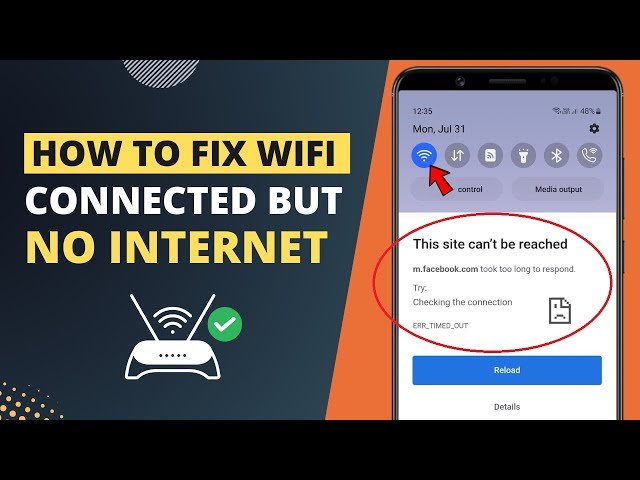
We have all stared at that infuriating little exclamation mark sitting next to our Wi-Fi icon. Your smartphone or laptop proudly claims it is fully connected to your home network. However, when you open a web browser, the pages refuse to load. Suddenly, your streaming movies stop buffering, and your smart home cameras go offline completely. This confusing paradox makes many people want to throw their expensive networking equipment out the nearest window. It feels like your technology is playing a cruel joke on you.
Therefore, many frustrated users immediately call expensive technical support lines or rush out to buy a brand-new router. Here at Money 4 Dummy, we know that throwing money at a problem is rarely the smartest solution. Consequently, we designed this investigative guide to help you become your own tech detective. We will systematically isolate the hardware, test the digital connections, and fix the corrupted settings. Ultimately, you will discover exactly where the communication breakdown is happening without spending a single dime.
Official Reference: Fix Wi-Fi connection issues in Windows — Microsoft Support
Strategy 1: The Multi-Device Isolation Test
Before touching any complicated settings or pulling cables out of the wall, you must identify the prime suspect. Is your expensive router actually broken, or is your laptop simply having a bad day? Answering this specific question saves you hours of unnecessary troubleshooting. Therefore, the multi-device isolation test is the absolute most critical diagnostic strategy you can deploy.
How to Execute the Isolation Test:
- First, leave your primary broken device exactly where it is. Do not change any of its settings yet.
- Next, grab a completely different piece of technology (like a secondary smartphone, a tablet, or a smart TV).
- Then, connect this secondary device to the exact same Wi-Fi network.
- After that, attempt to load a heavy website or open a YouTube video on the second device.
- The Verdict: If the secondary device loads the video perfectly, your router is working flawlessly. The problem is isolated entirely to your primary laptop or phone. Conversely, if both devices fail to load the internet, your router or your Internet Service Provider (ISP) is the actual culprit.
*Verification:* By establishing this baseline, you now know exactly which piece of hardware requires your attention. Consequently, you will not waste time resetting a perfectly healthy router.
Official Reference: Troubleshoot Wi-Fi networks — Google Android Help
Strategy 2: The Deep Hardware Power Cycle
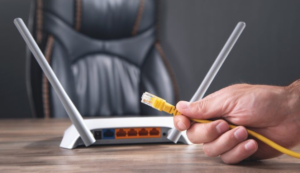
If you discovered that all your devices lack internet access, the router is definitely the main suspect. Modern routers are essentially tiny computers that run 24 hours a day, 365 days a year. Over time, their internal memory fills up with digital junk and routing errors. Therefore, a deep power cycle forces the hardware to dump its corrupted memory and establish a fresh connection to your ISP.
How to Perform a Deep Power Cycle Safely:
- First, locate your Wi-Fi router and your main modem (sometimes these are combined into one single box).
- Next, do not simply press the small reset button on the back. Instead, physically pull the black power cables straight out of the wall outlet.
- Then, wait for a full, uninterrupted sixty seconds. This waiting period allows the internal capacitors to drain their stored electricity completely.
- After that, plug the main modem back into the wall first. Wait two minutes for its lights to stabilize.
- Next, plug your Wi-Fi router back into the wall and wait another two minutes.
- Finally, reconnect your smartphone to the Wi-Fi network and test the internet connection again.
*Verification:* The router will broadcast a fresh, uncorrupted signal. Often, this simple electrical flush resolves 90 percent of wide-scale network outages instantly.
Official Reference: Recommended settings for Wi-Fi routers — Apple Support
Strategy 3: Flush and Forget Corrupted Network Profiles
What if the multi-device test proved that only your laptop is broken? In this scenario, your router is fine, but your laptop holds a corrupted digital passport. Every time you connect to a network, your device saves a “profile” containing unique IP addresses and security keys. If this profile becomes corrupted during a software update, the router will accept the connection but refuse to provide internet access.
How to Rebuild a Clean Network Profile:
- First, open the Wi-Fi settings menu on your problematic smartphone or laptop.
- Next, click or tap on the name of your specific home network.
- Then, locate the button labeled Forget this network and tap it to erase the corrupted profile completely.
- After that, if you are using a Windows PC, open Command Prompt as an administrator. Type
ipconfig /flushdnsand press Enter to clear the hidden network cache. - Next, restart your specific device to finalize the digital memory wipe.
- Finally, select your Wi-Fi network from the list again and type in your password carefully to create a brand-new connection.
*Verification:* Your device will request a brand-new IP address from the router. Consequently, the digital roadblock is removed, and web pages will begin loading smoothly once again.
Official Reference: Advanced network troubleshooting — Microsoft Support
Strategy 4: The Magic DNS Server Swap
Sometimes, your internet connection is perfectly healthy, but the “phonebook” is completely broken. The internet uses a Domain Name System (DNS) to translate website names (like Google.com) into numerical IP addresses. If your local Internet Service Provider has a broken DNS server, your devices cannot find any websites. Therefore, swapping to a highly reliable, global DNS server works like absolute magic.
How to Upgrade Your DNS Settings Safely:
- First, open your network settings on your connected device (or log directly into your router’s admin panel).
- Next, find the section labeled IPv4 DNS Settings or network details.
- Then, change the configuration method from “Automatic” strictly to Manual.
- After that, enter
8.8.8.8as your Primary DNS (This is Google’s highly secure public server). - Next, enter
1.1.1.1as your Secondary DNS (This is Cloudflare’s lightning-fast server). - Finally, save your new settings and disconnect and reconnect to the Wi-Fi network.
*Verification:* By bypassing your ISP’s broken routing tables, your websites will instantly snap back to life. Furthermore, you will likely notice that web pages actually load faster than they did before.
Official Reference: Configure your network settings to use Google Public DNS — Google Developers
Strategy 5: Read the Physical Modem Lights
Have you tried every digital trick, but the entire house is still offline? At this point, you must perform a physical hardware inspection. The blinking LED lights on the front of your modem tell a very specific, tragic story. Learning how to read these lights prevents you from wasting hours fixing software that is not actually broken.
How to Interpret the Hardware Signals:
- The Power Light: If this is off or blinking red, your modem is physically dying or the power adapter is fried.
- The LOS (Loss of Signal) Light: If a red LOS light is blinking, the physical fiber optic cable running to your house is cut or bent. You cannot fix this; you must call a technician immediately.
- The Internet/WAN Light: If this light is solid red or completely off, your ISP is experiencing a massive neighborhood outage. Your hardware is fine, but the internet company is broken.
*Verification:* By reading these lights correctly, you gain absolute certainty about the root cause. Consequently, you know exactly when it is time to stop troubleshooting and simply call your provider.
Official Reference: Understanding broadband connections — Federal Communications Commission
Costly Financial Traps to Avoid
At Money 4 Dummy, we hate seeing people waste their hard-earned cash on fake tech solutions. Please avoid these highly dangerous financial traps:
- Never Buy a New Router Immediately: Do not rush to the electronics store. 95% of network issues are software-related or ISP outages. Buying new hardware will not fix a cut neighborhood fiber cable.
- Avoid “Wi-Fi Booster” Scams: Third-party apps or cheap USB antennas claiming to boost your internet speed are massive scams. They often contain malware that steals your personal banking data.
- Do Not Pay for an Emergency Tech Visit: Always call your ISP and ask if there is an active outage in your area before requesting a technician. If the outage is on their end, the repair is 100% free.
Official Reference: Keep your computer hardware secure — Microsoft Security
Frequently Asked Questions
Why does my phone say “Sign in to network” when I connect?
This specific notification means you are dealing with a “Captive Portal.” Public networks (like at hotels, airports, or coffee shops) require you to accept their terms and conditions before granting internet access. Your device connects to the router successfully, but the router blocks the internet until you click “Accept” on a hidden web page. Simply tap the notification to open the login screen.
Official Reference: Connect to public Wi-Fi networks — Google Android Help
Can a VPN block my internet connection entirely?
Yes, absolutely. A Virtual Private Network (VPN) creates a highly encrypted tunnel for your data. However, if the VPN server crashes or your subscription expires, the tunnel collapses. The VPN software will forcefully block all internet traffic to protect your privacy, resulting in a “Connected, no internet” error. Turn off your VPN completely to test this theory instantly.
Official Reference: Troubleshoot VPN connections in Windows — Microsoft Support
Final Thoughts and Next Steps
In conclusion, diagnosing a “Connected, no internet” error is a highly logical process that anyone can master. First, always isolate the problem using a secondary device to protect your sanity. Next, perform a deep power cycle and flush your corrupted digital network profiles. Finally, upgrade your DNS servers to bypass local blockages safely. By following these exact investigative strategies from Money 4 Dummy, you will restore your internet connection swiftly and keep your hard-earned money strictly in your wallet.