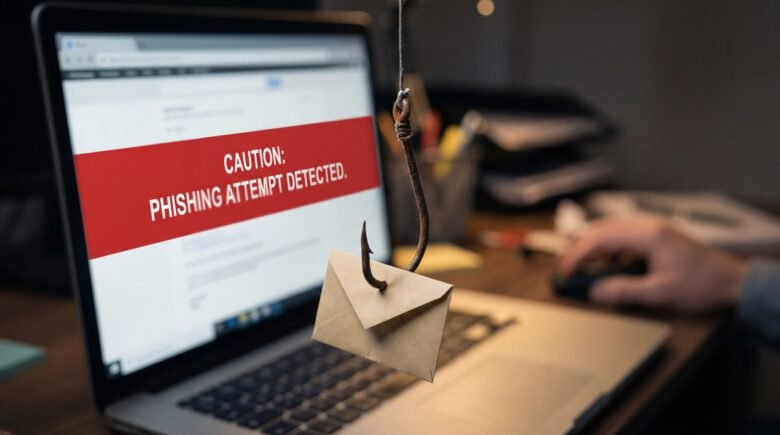
Opening your inbox to find a terrifying message from your bank claiming your account is suspended is a heart-stopping experience. Suddenly, you imagine your hard-earned savings disappearing into thin air. Furthermore, the email usually contains a massive, bright red button demanding you “Verify Your Identity Immediately.” This intense psychological pressure makes many people panic and abandon all logical thinking. Consequently, they click the dangerous link and willingly hand their passwords directly to an anonymous cybercriminal.
However, falling for a digital scam is never inevitable. Phishing emails always contain subtle, hidden mistakes because hackers cannot perfectly replicate massive corporate systems. Here at Money 4 Dummy, we strongly believe that protecting your digital identity is the absolute best way to secure your financial wealth. Therefore, we designed this comprehensive editorial guide to train your eyes like a cybersecurity expert. We will systematically analyze the sender’s true identity, expose hidden hyperlink traps, and identify poisonous attachments safely. Ultimately, you will learn how to destroy these digital threats without ever risking a computer virus.
Official Reference: Protect yourself from phishing — Microsoft Security
Indicator 1: The Disguised Sender Address
Cybercriminals are incredibly skilled at manipulating the “Display Name” of an email. When an email arrives, your phone or computer usually highlights the sender’s name prominently, such as “PayPal Support” or “Apple Security.” Unfortunately, anyone can type whatever name they want into that specific display field. However, hackers cannot easily fake the actual, underlying email address. Therefore, inspecting the raw email address is your absolute first line of defense.
How to Audit the True Sender:
- First, open the suspicious email, but keep your hands completely away from your mouse or touchscreen. Do not click anything inside the message body.
- Next, look at the very top of the email where the sender’s name is displayed.
- Then, click or tap on the sender’s name to reveal the hidden, underlying email address enclosed in brackets (e.g.,
<security-alert@gmail.com>). - After that, analyze the domain name (the part directly after the @ symbol). Official companies never use free services like @gmail.com, @yahoo.com, or @hotmail.com.
- Next, look for clever misspellings. Hackers often use domains like
@paypaI.com(using a capital ‘i’ instead of an ‘l’) or@amazon-support-web.com. - Finally, if the domain does not perfectly match the official company website, delete the email instantly.
*Verification:* By forcing the email application to reveal the raw sender data, the hacker’s disguise completely falls apart. Consequently, you neutralize the threat before it even begins.
Official Reference: Avoid and report phishing emails — Google Gmail Help
Indicator 2: The Silent “Hover” Test for Hyperlinks
The entire goal of a phishing email is to make you click a link. These links usually hide behind beautiful, legitimate-looking blue buttons labeled “Update Billing” or “Track Package.” If you click the button, it redirects your browser to a highly convincing, fake replica of the real website. Fortunately, you can secretly inspect where a link goes without ever triggering the dangerous redirect.
How to Inspect Hidden URLs Safely:
- First, ensure you are using a desktop computer or a laptop with a physical mouse for this specific test.
- Next, place your mouse cursor directly over the suspicious link or button. Do not click the mouse button. Simply let the cursor rest on top of the link.
- Then, look closely at the bottom-left corner of your web browser window.
- After that, read the small grey text that magically appears there. This text is the true, hidden destination URL.
- Next, analyze that URL. If an email claims to be from Netflix, but the hidden URL says
http://secure-login-update-774.info/login, it is a massive scam. - Finally, on mobile devices, you can usually perform this test by pressing and holding the link for three seconds until a preview window pops up (but this requires extreme caution).
*Verification:* The hover test completely strips away the fake button’s visual disguise. As a result, the malicious destination is exposed, and your browser remains perfectly safe.
Official Reference: Understanding website and URL security — Cybersecurity and Infrastructure Security Agency
Indicator 3: Manufactured Urgency and Threats
Hackers understand basic human psychology perfectly. They know that if you have time to think logically, you will spot their spelling mistakes and fake URLs. Therefore, they intentionally manufacture artificial panic. Phishing emails always contain intense, threatening language designed to rush your decision-making process.
How to Recognize Psychological Manipulation:
- The 24-Hour Threat: The email loudly claims that your account will be permanently deleted within 24 hours if you do not verify your details.
- The Fake Invoice: The email attaches a massive, fake receipt for a $900 television you never purchased, prompting you to furiously click the “Cancel Order” button.
- The Legal Threat: The message claims to be from the police or a tax agency, threatening immediate arrest or massive fines.
- The Solution: Official corporations and government agencies never threaten immediate account deletion over a single email. Therefore, take a deep breath, step away from the computer, and call the company using the official phone number listed on their verified website.
*Verification:* By recognizing the psychological manipulation, you regain control of your emotions. Consequently, the hacker’s artificial timeline loses all its terrifying power.
Official Reference: How to recognize and avoid phishing scams — Federal Trade Commission
Indicator 4: Generic Greetings and Poor Grammar
Massive corporations employ entire departments of professional writers and editors to craft their communications. Furthermore, legitimate companies securely store your first and last name in their databases. Conversely, hackers often operate from foreign countries and send millions of automated emails blindly without knowing who you actually are. This massive difference in quality is a huge red flag.
How to Spot Unprofessional Communication:
- First, look at the opening greeting. Legitimate companies usually say “Dear John Smith”. Phishing emails almost always use generic greetings like “Dear Customer”, “Valued Member”, or “Dear [Email Address]”.
- Next, read the entire email out loud. Hackers frequently use awkward phrasing, strange capitalizations, and glaring spelling errors.
- Then, look at the formatting. Are the corporate logos slightly blurry or stretched? This indicates the hacker simply copied and pasted low-quality images from Google.
- Finally, if a multi-billion dollar bank sends you an email filled with typos, you must assume it is completely fraudulent.
*Verification:* Reading the text critically exposes the amateur nature of the scam. As a result, you can confidently delete the message knowing it did not come from an official corporate entity.
Official Reference: Deal with phishing in Outlook — Microsoft Support
Indicator 5: Poisonous File Attachments
While fake login links are dangerous, poisonous file attachments are completely catastrophic. If you download and open a malicious attachment, it can instantly deploy a “Ransomware” virus. This severe virus encrypts every single photograph and document on your hard drive, demanding a massive Bitcoin payment to unlock them. Therefore, you must treat unexpected attachments like digital explosives.
How to Handle Unexpected Files Safely:
- First, never click on an attachment from an unknown sender. Even if the sender appears to be a friend, their account might be hacked.
- Next, look closely at the file extension (the letters after the dot). Never open files ending in
.exe,.scr,.vbs, or.zipunless you are absolutely certain of their origin. - Then, be extremely cautious of standard Microsoft Word (
.docx) or Excel (.xlsx) files. Hackers hide malicious “Macros” inside these seemingly innocent documents. - After that, if you receive an unexpected invoice or shipping label as an attachment, do not open it. Log into your Amazon or FedEx account directly through your browser to check your actual order status.
- Finally, ensure your computer’s built-in antivirus (like Windows Defender) is fully updated to scan attachments automatically in the background.
*Verification:* By refusing to download unexpected files, you completely neutralize the ransomware threat. Consequently, your hard drive and personal memories remain perfectly secure.
Official Reference: Protect your PC from ransomware — Microsoft Security
Financial Traps You Must Avoid
At Money 4 Dummy, our mission is to ensure you never lose a single penny to predatory internet criminals. Please avoid these highly dangerous financial traps when dealing with suspicious emails:
- Never Pay Extortion Demands: If an email claims the hacker recorded you through your webcam and demands Bitcoin, delete it immediately. This is a massive, automated bluff sent to millions of people simultaneously.
- Do Not Call the Provided Phone Numbers: Phishing emails often include a fake “Customer Support” phone number. If you call it, a professional scammer will answer and try to trick you into granting them remote access to your computer.
- Avoid Unsubscribe Links in Spam: Never click the “Unsubscribe” link at the bottom of a clear phishing email. Clicking it simply confirms to the hacker that your email address is active, resulting in even more spam.
Official Reference: Protect yourself from tech support scams — Microsoft Security
Frequently Asked Questions
What happens if I accidentally opened a phishing email but didn’t click anything?
Simply opening an email to read the text is generally very safe on modern email providers like Gmail or Outlook. These massive platforms automatically block hidden tracking pixels and malicious background scripts. As long as you did not click any hyperlinks, download any attachments, or reply to the sender, your computer and your account are perfectly secure. Simply click the “Report Spam” button and delete it.
Official Reference: Mark or unmark emails as spam — Google Gmail Help
Can a hacker fake an email to look exactly like it came from my own address?
Yes, absolutely. This terrifying tactic is called “Email Spoofing.” Cybercriminals can manipulate the email headers to make it appear as though they hacked your account and are emailing you from it. However, this is usually just a visual trick, not an actual hack. If you check your official “Sent” folder and the email is not there, your account is safe. It is just a highly deceptive spoofing attack.
Official Reference: Recognize and avoid spoofed emails — FTC
Final Thoughts and Next Steps
In conclusion, spotting a phishing email before it causes digital destruction is a highly logical skill that anyone can master. First, always audit the raw sender address to look past the fake display name. Next, use the silent hover test to expose hidden, malicious URLs. Finally, recognize psychological manipulation and completely avoid unexpected file attachments. By following these exact investigative strategies from Money 4 Dummy, you will permanently protect your digital identity and keep your hard-earned money strictly in your own pocket.