Watching your life savings disappear because a hacker guessed your password is an absolute nightmare. Today, massive corporate data breaches occur daily, leaking millions of private passwords onto the dark web. Consequently, relying strictly on a traditional password is essentially digital suicide. Even if you create a highly complex, forty-character password, a hidden computer virus can easily steal it. This terrifying reality makes many users feel completely helpless against modern cybercriminals.
Therefore, you must construct an unbreakable secondary wall around your digital identity. Two-Factor Authentication (2FA) is the ultimate digital bodyguard. However, many people avoid setting up 2FA because they are terrified of losing their smartphone and getting permanently locked out of their own accounts. Here at Money 4 Dummy, we strongly believe that ultimate security should never cause anxiety. Consequently, we designed this comprehensive editorial guide to help you deploy 2FA flawlessly. We will systematically configure your authenticator app, secure your emergency backup codes, and establish a bulletproof recovery plan. Ultimately, you will lock out global hackers while guaranteeing you never lose access to your own wealth.
Official Reference: Turn on Multi-Factor Authentication — Cybersecurity & Infrastructure Security Agency (CISA)
Tactic 1: Choose an Authenticator App Over SMS Text Messages
Before touching your account settings, you must choose the correct security weapon. Many banks still use SMS text messages to send you a 6-digit login code. Unfortunately, SMS text messages are incredibly vulnerable to a hacker tactic called “SIM Swapping”. A clever hacker can call your cellular provider, pretend to be you, and transfer your phone number to their own device. As a result, they will receive your secret login texts directly. Therefore, you must upgrade to a dedicated Authenticator Application immediately.
How to Prepare Your Digital Bodyguard:
- First, open the official Apple App Store or Google Play Store on your smartphone.
- Next, search strictly for official, highly trusted applications like Microsoft Authenticator, Google Authenticator, or Authy.
- Then, download the application and install it on your primary mobile device.
- After that, open the newly installed app and grant it permission to access your smartphone’s camera. You will need the camera to scan setup barcodes shortly.
- Finally, log into the authenticator app using your primary email address to enable basic cloud syncing (if supported by the specific app).
*Verification:* By refusing to rely on outdated SMS text messages, you completely neutralize the terrifying threat of SIM swapping. Consequently, your 6-digit codes are generated locally and securely on your own physical hardware.
Official Reference: How to use the Microsoft Authenticator app — Microsoft Support
Tactic 2: Scan the Secure QR Code Properly
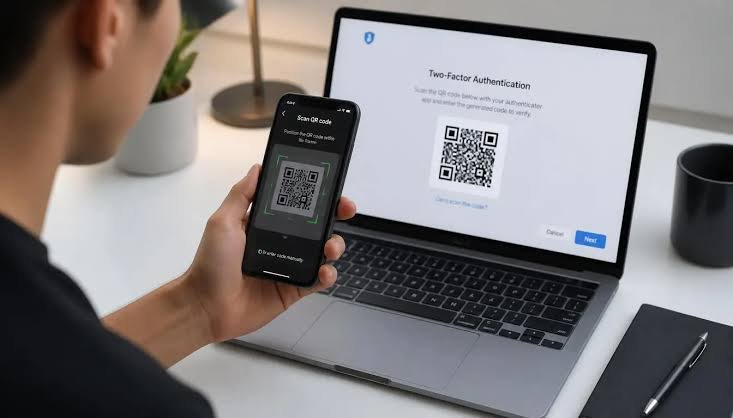
Now that your smartphone is prepared, you must digitally link it to your vulnerable online accounts. Whether you are securing your Gmail, your cryptocurrency exchange, or your primary bank account, the linking process is universally identical. The website will generate a unique, highly complex QR code (a square barcode). Scanning this barcode teaches your phone the exact mathematical algorithm required to generate your future login keys.
How to Link Your Account Securely:
- First, sit down at a desktop computer and log into the account you wish to secure (for example, your Google Account).
- Next, navigate directly to the Security or Privacy settings menu.
- Then, locate the option explicitly labeled 2-Step Verification or Two-Factor Authentication.
- After that, click “Set Up App” and a black-and-white QR code will appear on your computer monitor.
- Next, open the Authenticator App on your smartphone, tap the massive “+” (Plus) icon, and select Scan a QR Code.
- Finally, point your phone’s camera at the computer monitor. The app will instantly scan the code and display a changing 6-digit number. Type this number into the website to verify the connection.
*Verification:* The website will display a massive green checkmark confirming the setup was successful. From this moment forward, absolutely nobody can log into your account without physically holding your unlocked smartphone.
Official Reference: Get verification codes with Google Authenticator — Google Account Help
Tactic 3: Generate and Store Emergency Backup Codes Safely
What happens if you drop your smartphone into the ocean or a thief steals it from your pocket? If your authenticator app is permanently destroyed, you cannot generate the 6-digit login code. Consequently, you will be permanently locked out of your own account. To prevent this massive disaster, every major website provides a list of ten “Emergency Backup Codes” during the initial 2FA setup. You must treat these codes like physical gold bars.
How to Secure Your Ultimate Lifelines:
- First, immediately after setting up the 2FA app, look for the Backup Codes or Recovery Codes section on the website’s security page.
- Next, click the Generate Codes button. The website will display a list of ten unique, static passwords. Each code works exactly one time during an emergency.
- Then, click the Print button and print these codes on a physical piece of paper.
- After that, absolutely never save these codes as a simple text file named “passwords.txt” on your computer desktop. A background virus will steal them instantly.
- Next, take the printed piece of paper and place it inside a fireproof safe, a bank safety deposit box, or hand it to a highly trusted family member.
- Finally, if you must store them digitally, place them strictly inside a highly encrypted password manager (like Bitwarden or 1Password).
*Verification:* If your smartphone shatters into a million pieces tomorrow, you will not panic. You simply open your fireproof safe, type in one of the printed backup codes, and regain instant access to your funds.
Official Reference: Sign in with backup codes — Google Account Help
Tactic 4: Set Up a Secondary Trusted Device
Relying on a single piece of paper for emergency recovery can still feel slightly stressful. Fortunately, you can establish a secondary digital lifeline. If you own multiple Apple or Android devices, you can configure a secondary tablet or an old smartphone to generate the exact same 2FA codes as your primary phone. Therefore, you create a perfect, redundant backup system.
How to Establish Digital Redundancy:
- First, log into your main online account and disable the 2FA setting temporarily (or request to “Change Authenticator App”).
- Next, wait for the new, fresh QR code to appear on your computer monitor.
- Then, grab both your primary smartphone and your secondary tablet simultaneously.
- After that, open the authenticator app on both devices and scan the exact same QR code with both cameras.
- Next, verify the connection by typing the 6-digit code from either device into the website.
- Finally, power down the secondary tablet and store it safely in a desk drawer as your dedicated emergency backup generator.
*Verification:* Both devices will now generate the exact same mathematical codes simultaneously. As a result, losing your primary phone is a minor inconvenience rather than a catastrophic digital lockout.
Official Reference: Back up and recover account credentials — Microsoft Support
Tactic 5: Avoid Digital Lockouts (The Safe Recovery Email)
Finally, your Two-Factor Authentication system is only as strong as its weakest link. If your bank account is protected by a 2FA app, but the “Forgot Password” recovery link sends an email to an old, unprotected Yahoo account, you have a massive security hole. A hacker will simply hack your old email address, click the reset link, and bypass the 2FA completely. Therefore, you must secure the recovery chain.
How to Secure the Recovery Bridge:
- First, log into your primary email account (the one used for banking and social media).
- Next, ensure that this specific email account is also protected by the Authenticator App. Never leave your main email vulnerable.
- Then, check your account’s Recovery Email and Recovery Phone Number settings.
- After that, delete any old email addresses you no longer use actively.
- Next, remove your phone number from the recovery options if you want to completely eliminate the risk of SIM swapping attacks bypassing your security.
- Finally, review your trusted devices list and remove any old laptops you sold or threw away years ago.
*Verification:* By sealing these hidden backdoor entrances, your digital fortress becomes completely impenetrable. Consequently, hackers cannot exploit forgotten recovery methods to destroy your security setup.
Official Reference: Set up a recovery phone number or email address — Google Account Help
Financial Traps You Must Avoid
At Money 4 Dummy, our ultimate goal is to protect your wallet from predatory tech scams. Please avoid these highly dangerous financial traps when dealing with digital security:
- Never Pay for Fake Authenticator Apps: Do not download random authenticator apps that charge a $9.99 weekly subscription fee. The official Microsoft and Google Authenticator apps are 100% free forever. The paid ones on the app store are usually massive scams.
- Do Not Share 6-Digit Codes with “Support”: If someone calls you claiming to be from your bank and asks you to read them the 6-digit code from your app, hang up immediately. Official bank employees will never ask for your 2FA code over the phone.
- Avoid Taking Screenshots of Backup Codes: Never take a screenshot of your backup codes using your phone. Cloud backup services automatically upload your screenshots to the internet, making them highly vulnerable to hackers. Print them instead.
Official Reference: Protect yourself from tech support scams — Microsoft Security
Frequently Asked Questions
Does my Authenticator App need an internet connection to work?
No, absolutely not. This is a massive misconception. Authenticator apps use a cryptographic protocol called Time-Based One-Time Password (TOTP). This means the 6-digit code is generated locally using the internal clock of your smartphone and the secret algorithm you scanned earlier. Therefore, even if you are entirely offline on an airplane or traveling internationally without a SIM card, your app will generate the correct login codes perfectly.
Official Reference: Use Google Authenticator without a connection — Google Account Help
Can I transfer my 2FA codes when I buy a new smartphone?
Yes, modern authenticator apps make this incredibly simple. If you use Google Authenticator, you can open the old app, select “Transfer Accounts,” and it will display a massive QR code. Simply scan this code with your brand-new phone to transfer all your security keys instantly. Similarly, Microsoft Authenticator uses an encrypted cloud backup system linked to your personal Microsoft account to restore your keys onto a new device automatically.
Official Reference: Restore credentials on a new device — Microsoft Support
Final Thoughts and Next Steps
In conclusion, deploying Two-Factor Authentication is the single most important action you can take to protect your digital identity and your financial wealth. First, always select a dedicated Authenticator App instead of vulnerable SMS text messages. Next, scan your QR codes carefully and print your emergency backup codes immediately. Finally, secure your recovery email accounts to close any hidden backdoors. By following these exact investigative strategies from Money 4 Dummy, you will guarantee that your private data remains completely impenetrable, while ensuring you are never locked out of your own life.