Browsing the internet today feels like walking through a highly surveilled shopping mall. Every single website you visit constantly begs for access to your personal hardware. Suddenly, a random recipe blog demands to know your exact physical location. Furthermore, a simple online calculator might ask for permission to turn on your microphone and camera. Often, users simply click the “Allow” button in a rush to dismiss the annoying pop-up window. Consequently, they unknowingly grant dozens of unknown corporations permanent access to their private digital lives.
Leaving these permissions wide open is incredibly dangerous. If a malicious website has permanent access to your camera or location, they can harvest your data silently in the background. Here at Money 4 Dummy, we believe that protecting your digital privacy is the ultimate way to secure your financial identity. Therefore, we designed this comprehensive security guide to help you take back control. We will systematically audit your browser, purge unnecessary permissions, and lock down your hardware. Ultimately, you will browse the internet peacefully without feeling like someone is constantly watching your every move.
Official Reference: Change site permissions — Google Chrome Help
Phase 1: Understanding the True Value of Your Data
Before you begin pressing buttons and deleting settings, you must understand exactly what these permissions do. Websites do not ask for your location just to be friendly. They use your geographic data to serve highly targeted, localized advertisements. Furthermore, push notifications are often abused to spam your desktop with fake virus alerts and scam links. By understanding the motive behind these requests, you will feel much more confident denying them.
Every major web browser categorizes permissions into highly specific hardware groups. The most critical categories include Location, Camera, Microphone, and Notifications. Unless you are actively using a video conferencing tool like Zoom or a web mapping service, absolutely no website needs access to these sensors. Therefore, maintaining a strict “Deny by Default” mindset is your best defense mechanism.
Phase 2: Executing the Great Google Chrome Purge
Google Chrome is the most popular web browser in the world. Consequently, it is where most of your forgotten permissions currently live. Chrome provides a fantastic, centralized dashboard that allows you to see every single website that has ever asked for your data. Reviewing this master list is a truly eye-opening experience for most internet users.
How to Audit Your Chrome Security Settings:
- First, open your Google Chrome browser on your desktop or laptop computer.
- Next, look at the top-right corner of the window and click the three vertical dots (the main menu).
- Then, select Settings from the drop-down list to open your main configuration panel.
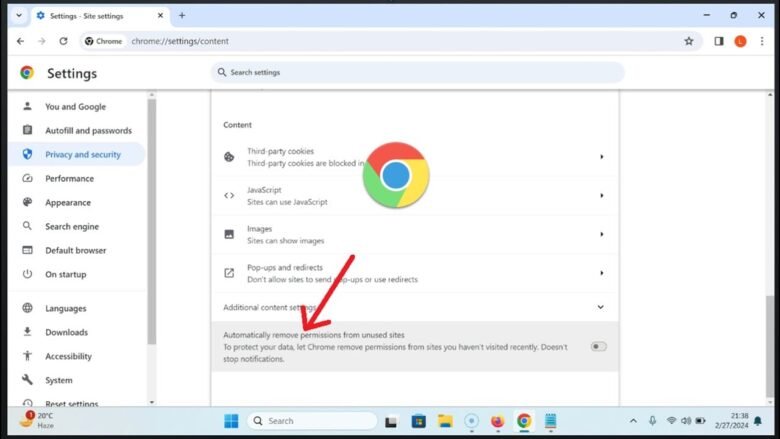
- After that, click on Privacy and security located in the left sidebar menu.
- Next, click directly on Site settings. This opens the master permission dashboard.
- Finally, click on specific categories like Camera or Location to view the detailed list of allowed websites.
*Verification:* To remove a shady website, simply click the small trash can icon directly next to its name. Alternatively, click the website’s name and change the permission dropdown switch from “Allow” strictly to Block. The website immediately loses all access to your hardware.
Official Reference: Manage your privacy in Google Chrome — Google Chrome Help
Phase 3: Securing the Microsoft Edge Environment
If you use a modern Windows computer, you likely browse the internet using Microsoft Edge. Because Edge is built on the same core engine as Chrome, the security settings are remarkably similar. However, Microsoft organizes their menus slightly differently. Therefore, you must navigate their specific privacy dashboard to lock down your system.
How to Revoke Permissions in Microsoft Edge:
- First, launch the Microsoft Edge browser and click the three horizontal dots in the top-right corner.
- Next, select Settings to open the main Edge control panel.
- Then, look at the left sidebar and click specifically on Cookies and site permissions.
- After that, scroll down slightly until you reach the All permissions section.
- Next, select a highly sensitive category, such as Microphone or Notifications.
- Finally, review the list of approved websites. Click the trash can icon next to any unknown or unused domain to revoke its access instantly.
*Verification:* Once you delete the website from the “Allow” list, Microsoft Edge will instantly cut off its digital bridge. Consequently, if you ever visit that website again, it must ask for your explicit permission from scratch.
Official Reference: Manage website permissions in Microsoft Edge — Microsoft Support
Phase 4: The Rapid Single-Site Lockdown Method
Sometimes, you do not need to audit your entire browser history. You might simply want to silence the specific website you are currently looking at. For example, if a news website starts sending you annoying desktop notifications while you are trying to read an article, you can cut off their access instantly without digging through complex settings menus.
How to Use the Quick Padlock Trick:
- First, ensure you are currently viewing the exact website you want to restrict.
- Next, look at the very top of your browser window, directly to the left of the URL address bar.
- Then, click the small Padlock icon (or the Settings icon shaped like two small sliders).
- After that, a quick-access drop-down menu will appear showing all active permissions for that specific site.
- Next, locate the toggle switches next to Location, Camera, or Notifications.
- Finally, flip the switch to the OFF position. If you want deeper control, click the Site settings link at the bottom of the pop-up menu.
*Verification:* The browser will prompt you to reload the current page. Once reloaded, the website operates under its new, highly restricted rules. This instant method is perfect for daily, on-the-fly privacy management.
Official Reference: Understanding website security indicators — CISA
Phase 5: Stopping Future Permission Requests Permanently
Removing old permissions is fantastic, but constantly denying new requests is incredibly annoying. Every time you visit a new blog, a pop-up window begs to send you notifications. Fortunately, both Chrome and Edge allow you to silence these requests permanently. You can force the browser to automatically block all future permission prompts silently in the background.
How to Enable the “Quiet Mode” Shield:
- First, return to the Site settings menu in Chrome (or Cookies and site permissions in Edge).
- Next, click on the Notifications category.
- Then, look for the master toggle switch located at the very top of the page.
- After that, change the setting from “Sites can ask to send notifications” strictly to Don’t allow sites to send notifications.
- Next, apply this exact same strategy to the Location and Camera categories if you rarely use them.
- Finally, enjoy a completely pop-up-free web browsing experience.
*Verification:* Websites will no longer interrupt your reading with annoying prompt windows. The browser automatically answers “No” on your behalf, preserving your peace of mind.
Official Reference: Turn notifications on or off in Chrome — Google Chrome Help
Financial Traps You Must Avoid
At Money 4 Dummy, we want to ensure you never fall victim to expensive digital scams. Please avoid these highly dangerous financial traps when dealing with website permissions:
- Never Allow Notifications from Unknown Sites: Shady websites use the notification permission to push fake “Your PC is Infected” alerts directly to your desktop. These fake alerts trick you into buying useless, expensive software.
- Do Not Download “Privacy Cleaner” Apps: You do not need third-party software to manage your browser permissions. Paid PC optimizers are often scams that steal your data instead of protecting it.
- Avoid Rogue E-Commerce Stores: If an unknown online store asks for your physical location before letting you view their catalog, block them immediately. They are likely calculating fake, inflated shipping rates based on your zip code.
Official Reference: Protect yourself from tech support scams — Microsoft Security
Frequently Asked Questions
If I block a website’s cookies, will the website stop working?
Yes, completely blocking all cookies can break many legitimate websites. Cookies are not hardware permissions; they are small text files that remember your login session and shopping cart contents. If you block essential cookies, you will not be able to log into your bank or purchase items online. Therefore, you should only block third-party tracking cookies, not essential site cookies.
Official Reference: Clear, allow & manage cookies in Chrome — Google Chrome Help
Can a website turn on my webcam without the indicator light turning on?
No, this is highly unlikely on modern hardware. Most modern laptops (like MacBooks and newer Windows PCs) hardwire the webcam’s LED indicator light directly to the power source of the camera lens. Therefore, it is physically impossible for the camera to receive power without the green light illuminating. However, managing your browser permissions is still the best software-level defense.
Official Reference: Securing Your Web Browser — Cybersecurity & Infrastructure Security Agency
Final Thoughts and Next Steps
In conclusion, auditing your web browser permissions is a highly logical and necessary digital hygiene routine. First, always understand exactly what sensitive data a website is requesting. Next, use the centralized Site Settings dashboard in Chrome or Edge to purge forgotten domains. Finally, utilize the quick padlock menu for instant control and disable future notification prompts entirely. By following these exact security strategies from Money 4 Dummy, you will guarantee that your private digital life remains completely under your own strict control.