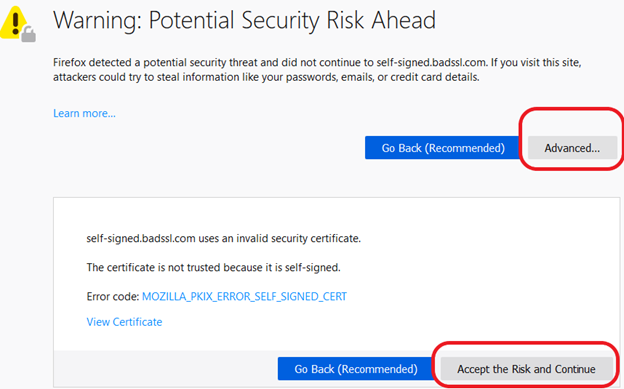
Staring at a bright red screen with the warning “Your connection is not private” is incredibly terrifying. Suddenly, your web browser refuses to load a basic website, claiming that hackers might be trying to steal your passwords. Consequently, many users panic and assume their computer is infected with a severe virus. However, an SSL certificate warning rarely means your device is actively under attack. In most cases, a simple clock syncing error, a public Wi-Fi login screen, or an expired website certificate causes this exact problem.
Therefore, you must investigate this digital roadblock using a completely safe, step-by-step approach. Bypassing the warning blindly is extremely dangerous. Here at Money 4 Dummy, we strongly believe in auditing your settings before taking massive digital risks. We will systematically check your system clock, bypass public network traps, and audit your antivirus guards. Ultimately, you will discover whether the problem is your computer or the actual website, ensuring your private data remains completely secure.
Official Reference: Check if a site’s connection is secure — Google Chrome Help
Tactic 1: Synchronize Your System Date and Time
Websites use highly encrypted SSL certificates to prove their identity to your browser. These digital passports have strict expiration dates. If your computer’s internal clock is set to the wrong year or month, your browser will instantly panic. It assumes the website’s security certificate is either expired or forged. Therefore, correcting your system time is the absolute most critical diagnostic step.
How to Synchronize Your Digital Clock:
- First, look at the bottom-right corner of your Windows taskbar.
- Next, right-click directly on the time and date display.
- Then, select Adjust date and time from the small pop-up menu.
- After that, ensure the toggle switches for Set time automatically and Set time zone automatically are turned completely ON.
- Next, scroll down slightly and click the Sync now button to force a fresh internet time update.
- Finally, restart your web browser and try visiting the secure website again.
*Verification:* The terrifying security warning will disappear completely. As a result, the browser will verify the certificate successfully and load the page securely.
Official Reference: How to set your time and time zone — Microsoft Support
Tactic 2: Navigate Public Wi-Fi Captive Portals
Are you sitting in a coffee shop, hotel, or airport? Public Wi-Fi networks frequently intercept your internet traffic to display a mandatory login screen. Unfortunately, modern web browsers view this interception as a “Man-in-the-Middle” hacker attack. Consequently, the browser throws a massive security warning to protect you. Therefore, you must trigger the login screen safely before browsing securely.
How to Bypass the Network Interception:
- First, open a brand-new tab in your web browser.
- Next, type exactly
http://neverssl.cominto the address bar. This specific website never uses encryption, forcing the router to intercept it cleanly. - Then, press Enter and wait for the page to load.
- After that, your browser should automatically redirect you to the public Wi-Fi login screen.
- Next, accept the terms and conditions provided by the coffee shop or hotel.
- Finally, return to your original tab and refresh the broken secure website.
*Verification:* By logging into the network officially, the local router stops intercepting your traffic. Consequently, secure websites will load perfectly without triggering any privacy alarms.
Official Reference: Connect to public Wi-Fi networks — Google Android Help
Tactic 3: Temporarily Disable Third-Party Antivirus Software
Sometimes, your computer is perfectly healthy, but your digital bodyguard is acting far too aggressively. Third-party antivirus programs often use a feature called “HTTPS Scanning”. This feature actively decrypts and scans your secure web traffic. Unfortunately, web browsers absolutely hate when another program touches their secure connections. As a result, the browser blocks the website entirely.
How to Audit Your Antivirus Shields Safely:
- First, locate your antivirus icon in the bottom-right system tray on your desktop.
- Next, right-click the specific antivirus icon to open its quick menu.
- Then, look for an option to Pause protection or Disable shields for exactly 10 minutes.
- After that, return to your web browser and reload the blocked website.
- Next, if the website loads successfully, open your antivirus settings permanently.
- Finally, locate the “Web Shield” or “HTTPS Scanning” setting and turn it off, relying on your browser’s built-in security instead.
*Verification:* Without the antivirus forcefully inspecting the encrypted traffic, the browser communicates directly with the website. Therefore, the connection establishes smoothly without triggering false alarms.
Official Reference: Manage Windows Security shields — Microsoft Support
Tactic 4: Clear the SSL State and Browser Cache
If the date is correct and the network is clear, your computer might be holding onto a corrupted digital certificate. Your operating system caches SSL certificates to load websites faster on subsequent visits. However, if a website updates its security credentials, your old cached version creates a massive conflict. Flushing this hidden cache forces your computer to download fresh security data.
How to Rebuild a Clean Digital Passport:
- First, click the Windows Start button, type Internet Options, and press Enter.
- Next, click on the Content tab located at the top of the small window.
- Then, click the button labeled Clear SSL state. A small success message will appear instantly.
- After that, open your main web browser and press Ctrl + Shift + Delete simultaneously.
- Next, clear your Cached images and files completely.
- Finally, restart your entire computer to ensure the digital memory wipe is finalized.
*Verification:* Upon rebooting, your browser will request a brand-new, updated security certificate directly from the website server. Consequently, the digital roadblock is removed entirely.
Official Reference: Clear cache & cookies — Google Account Help
Tactic 5: Understand When to Walk Away (The Real Risks)
Have you tried every single diagnostic step, but the warning still flashes brightly on your screen? In this specific scenario, your computer is functioning perfectly. The actual website is completely broken. If the website owner forgot to renew their SSL certificate, or if hackers hijacked the server, proceeding is incredibly dangerous. Therefore, you must never click the “Proceed to website” button blindly.
How to Identify True Cyber Danger:
- Check the Code: Look at the specific error code displayed on the screen (such as
ERR_CERT_DATE_INVALID). - Watch for Phishing: If the error states the certificate belongs to a completely different website, you are likely experiencing a massive phishing attack.
- Never Enter Data: Never enter your credit card information, passwords, or personal details on a page displaying a red security warning.
- The Best Solution: Simply close the tab and try visiting the website again tomorrow. Legitimate administrators will usually fix their broken certificates within 24 hours.
*Verification:* By respecting the warning when it truly matters, you guarantee your financial data remains completely safe from interception. Security warnings exist to protect you, not to annoy you.
Official Reference: Protect yourself from phishing — Microsoft Security
Financial Traps You Must Avoid
At Money 4 Dummy, our ultimate goal is to protect your wallet from predatory tech scams. Please avoid these highly dangerous financial traps when dealing with security warnings:
- Never Pay for “Registry Cleaners”: Do not buy third-party PC Optimizer software. These programs claim to fix SSL errors, but they are expensive scams that actually inject harmful spyware into your system.
- Do Not Call Fake Tech Support Numbers: If a security warning displays a flashing phone number claiming your PC is infected, close the tab immediately. This is a severe tech support scam designed to steal your credit card.
- Avoid Disabling Core Firewalls: Never permanently disable your core Windows Security firewalls just to bypass a stubborn website warning.
Official Reference: Protect yourself from tech support scams — Microsoft Security
Frequently Asked Questions
Why does Chrome say “Your connection is not private”?
Google Chrome displays this terrifying message when it cannot verify the digital signature of the website you are visiting. The browser demands a secure, encrypted connection to protect your personal data from hackers snooping on the network. If the connection fails the strict cryptographic test, Chrome halts the connection completely to protect your privacy.
Official Reference: Understand Chrome security warnings — Google Chrome Help
Is it safe to bypass the warning using the “thisisunsafe” typing trick?
No, absolutely not. While typing the hidden phrase “thisisunsafe” into Chrome physically bypasses the warning, it strips away all your digital armor. If you use this trick, anyone on your network can intercept your passwords and read your private messages in plain text. You should only use this trick for local testing on your own private development servers.
Official Reference: Understanding website security — Cybersecurity and Infrastructure Security Agency
Final Thoughts and Next Steps
In conclusion, troubleshooting browser security warnings is a highly logical process that protects your personal privacy. First, always synchronize your system clock and bypass public Wi-Fi captive portals safely. Next, audit your aggressive third-party antivirus shields and clear your SSL state. Finally, respect the warning if the website is truly compromised. By following these exact investigative strategies from Money 4 Dummy, you will browse the internet securely and keep your hard-earned money strictly in your wallet.