Seeing a “Storage Almost Full” warning on your Android smartphone is incredibly stressful. Suddenly, your expensive device starts lagging, and you cannot download important software updates. Furthermore, your camera refuses to save new photos. In panic, many people buy a brand-new phone or delete their precious family memories. However, a full hard drive rarely means your device is permanently useless. In most cases, invisible temporary files called “App Cache” are secretly consuming dozens of gigabytes of space.
Therefore, you must learn how to clear this digital junk using a highly safe, step-by-step approach. First, we will understand the critical difference between temporary cache and permanent data. Next, we will navigate your Android settings securely. Then, we will clear the cache without touching your passwords or personal files. Finally, we will use built-in optimization tools to maintain your storage. Consequently, this detailed method will make your phone lightning-fast again. Here at Money 4 Dummy, we believe smart digital maintenance saves you hundreds of dollars by extending your device’s lifespan.
Official Reference: Free up space on your Android device — Google Android Help
Step 1: Understand the Difference Between Cache and Data
Before clicking any buttons, you must understand exactly how Android stores information. Every application creates two completely different folders on your internal storage. One folder holds your “Cache,” while the other folder holds your “Data.” Pressing the wrong button can cause a massive digital disaster. Therefore, learning this distinction is your absolute first line of defense.
To understand your storage folders clearly:
- First, recognize that Cache contains strictly temporary files. For example, it holds thumbnail images, temporary video clips, and layout scripts. Deleting the cache is 100% safe.
- Next, recognize that Data contains your permanent, personal information. For instance, it holds your login passwords, game save files, and customized app settings.
- Then, remember that clearing the Data button acts like uninstalling and reinstalling the app entirely.
- Consequently, you must train your eyes to completely ignore the “Clear Data” or “Clear Storage” button.
- Finally, focus solely on the “Clear Cache” button to preserve your personal digital life.
*Verification:* By memorizing this critical difference, you will approach the Android settings menu with complete confidence. You will never accidentally log yourself out of your banking or social media applications again.
Official Reference: Clear cache and data from Google Play Services — Google Play Help
Step 2: Navigate to the Application Management Menu
Now that you understand the theory, you must find the hidden storage controls. Android organizes every single installed application into a massive master list. However, different smartphone manufacturers like Samsung, Xiaomi, and Google Pixel use slightly different menu names. Despite these small visual differences, the core navigation path remains incredibly similar.
To find your application list safely:
- First, unlock your smartphone and tap the gear-shaped Settings icon on your home screen.
- Next, scroll down the main settings menu until you find a section labeled Apps or App Management.
- Then, tap on See all apps or Manage apps to reveal your complete software list.
- After that, tap the three vertical dots in the top right corner if you want to include hidden system apps.
- Next, scroll through the alphabetical list to find a heavy application, such as TikTok, Instagram, or Google Chrome.
- Finally, tap directly on the application’s name to open its specific “App Info” page.
*Verification:* A new page will open displaying the application’s icon at the top. Furthermore, you will see several options like Force Stop, Uninstall, Permissions, and Storage. You are now in the correct diagnostic area.
Official Reference: Manage apps on your Android device — Google Android Help
Step 3: Access the Specific App Storage Settings
You cannot clear the cache directly from the main App Info page on modern Android versions. To prevent accidental clicks, Google hid the deletion buttons inside a deeper sub-menu. This clever design protects amateur users from destroying their personal files. Therefore, you must navigate one step further to find the golden buttons.
To access the precise storage controls securely:
- First, look at the App Info page you opened in the previous step.
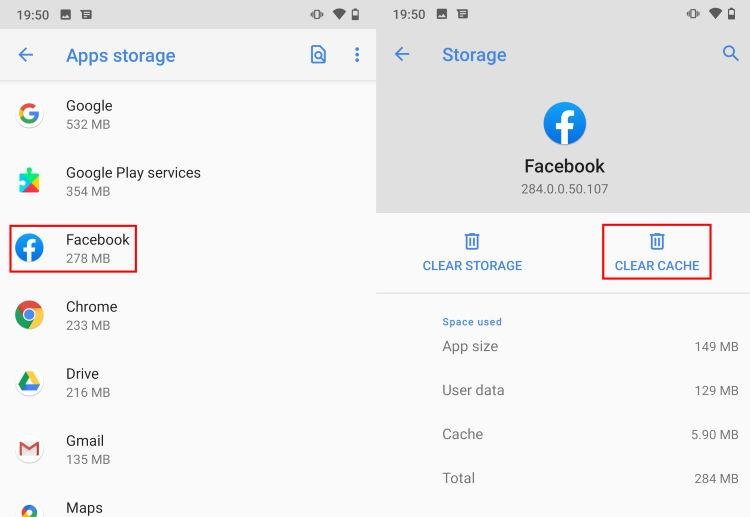
- Next, locate the menu item labeled Storage & cache or simply Storage.
- Then, tap this specific option to reveal the detailed memory breakdown.
- After that, look at the statistics displayed on your screen. You will see exactly how many megabytes the “App size,” “User data,” and “Cache” are currently consuming.
- Finally, identify the two distinct action buttons at the top or bottom of your screen.
*Verification:* You should now clearly see a button labeled “Clear Cache” alongside a completely separate button labeled “Clear Data” (or “Clear Storage”). Do not touch anything yet.
Official Reference: Check how much storage is available — Google Android Help
Step 4: Execute the Cache Clearing Process Carefully
This is the most critical step of the entire troubleshooting process. You are now looking at the two buttons. One button saves your storage space safely, while the other button destroys your personal login data completely. You must press the correct button with absolute precision.
To clear the temporary junk files safely:
- First, visually locate the button specifically labeled Clear Cache. (It often has a small broom icon).
- Next, take a deep breath and ensure your finger is hovering over the correct side of the screen.
- Then, tap the Clear Cache button exactly once.
- After that, watch the storage statistics numbers listed on the screen.
- Next, confirm that the number next to “Cache” instantly drops to zero bytes (0 B).
- Finally, press the back arrow to return to the main list and repeat this process for other heavy social media apps.
*Verification:* Open the application you just cleaned. It will launch perfectly. Furthermore, you will not have to type your username or password again. All your personal data is perfectly intact, but your storage space has increased.
Official Reference: Clear Google Play Store cache to fix downloading issues — Google Play Help
Step 5: Use the Built-in Device Care Optimizer
Clearing the cache for fifty different applications manually is incredibly tedious. Fortunately, premium smartphone brands like Samsung and Xiaomi include brilliant built-in optimization software. These official tools safely scan your entire phone and clear temporary junk files from all applications simultaneously. Using these built-in tools saves massive amounts of time.
To optimize your device automatically and safely:
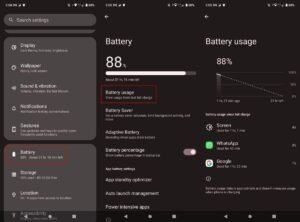
- First, open the main Settings app on your smartphone.
- Next, scroll down and tap on Battery and device care (or Security/Optimizer on Xiaomi).
- Then, wait a few seconds for the software to finish scanning your phone’s health.
- After that, tap the large Optimize now or Clean button displayed on the screen.
- Next, watch as the system automatically flushes background apps and unnecessary cache files.
- Finally, tap the “Done” button when the process reaches 100 percent.
*Verification:* Your phone will display a glowing “Great” or “100%” health score. Consequently, your device will run much cooler, and your battery life will improve noticeably.
Official Reference: Use built-in storage management tools — Google Android Help
What Not to Do When Managing Android Storage
Please avoid these highly dangerous mistakes to protect your personal files and smartphone security. At Money 4 Dummy, we want to ensure you never lose money recovering lost data:
- Do not tap the “Clear Storage” or “Clear Data” button under any circumstances unless an app is hopelessly broken. Tapping this wipes your game saves, offline music, and login credentials permanently.
- Do not download third-party “Cache Cleaner” or “RAM Booster” apps from the Google Play Store. These apps are often massive scams that bombard your phone with popup advertisements and steal your data.
- Also, do not manually delete random files inside the hidden “Android/data” folder using a file manager. You might accidentally delete critical operating system assets.
- Finally, do not attempt to root your phone to clear deep system caches. Rooting voids your expensive warranty and exposes your banking apps to extreme hacker threats.
Official Reference: Help protect your phone against harmful apps — Google Android Help
Frequently Asked Questions
Will clearing the cache delete my personal photos or WhatsApp chats?
No, absolutely not. The cache only contains temporary internet files like low-quality preview thumbnails or short advertisement videos. Your actual high-resolution photos, private WhatsApp chat histories, and downloaded MP3 files are stored safely in the “User Data” section. Therefore, tapping “Clear Cache” is completely harmless to your personal memories.
Official Reference: Understand what files are safe to delete — Google Android Help
How often should I clear my Android application cache?
You do not need to clear your cache every single day. Actually, a small amount of cache is healthy because it helps apps load faster the next time you open them. Ideally, you should only clear the cache once every three months, or whenever your phone’s total storage drops below 10 percent. Over-clearing simply forces your phone to redownload the same files repeatedly, wasting your cellular data.
Official Reference: Manage Android app performance — Google Android Help
Why does the cache fill up so fast on social media apps?
Applications like Instagram, TikTok, and Facebook are incredibly visual. Every time you scroll past a video or a photo, the app saves a tiny piece of that media to your hard drive so it plays instantly if you scroll back up. If you scroll for two hours a day, these tiny files easily pile up into several gigabytes of hidden junk within a single month.
Official Reference: Why streaming apps consume storage — Google Play Help
Final Thoughts and Official Resources
In conclusion, recovering your lost storage space is a very logical process that never requires deleting your personal files. First, always remember the crucial difference between temporary cache and permanent data. Next, navigate to your app settings and isolate the heaviest applications. Finally, tap the “Clear Cache” button carefully while strictly avoiding the “Clear Data” button. By following these exact safe steps provided by Money 4 Dummy, you will keep your smartphone running blazingly fast for years to come.