Missing an important text message or a breaking news alert because your phone stayed silent is incredibly frustrating. Suddenly, you realize your Android smartphone is not displaying any push notifications. Furthermore, you might open an application only to find dozens of unread messages waiting inside. However, a silent phone rarely means your device’s internal receiver is completely broken. In most cases, aggressive battery-saving features, a hidden Focus Mode, or accidentally disabled permissions cause this exact problem.
Consequently, you must troubleshoot this digital silence using a safe, step-by-step approach. First, we will inspect the individual application permissions carefully. Next, we will disable any hidden Do Not Disturb modes. Then, we will adjust your aggressive battery optimization rules securely. Finally, we will clear corrupted application caches. As a result, this detailed method will restore your push alerts instantly. Here at Zodiacs Miracle, we prioritize perfectly safe troubleshooting methods that never require risky system modifications.
Official Reference: Control notifications on Android — Google Android Help
Step 1: Inspect Individual App Notification Settings
Android allows you to customize alerts for every single application independently. Sometimes, users accidentally swipe a notification the wrong way and turn off the master switch by mistake. Therefore, checking the specific application’s permission is the absolute best starting point to ensure the app is legally allowed to alert you.
To verify your app notification settings securely:
- First, open the main Settings app on your Android device.
- Next, tap on Apps or App Management to view your installed software.
- Then, scroll down and tap the specific application that is failing to alert you.
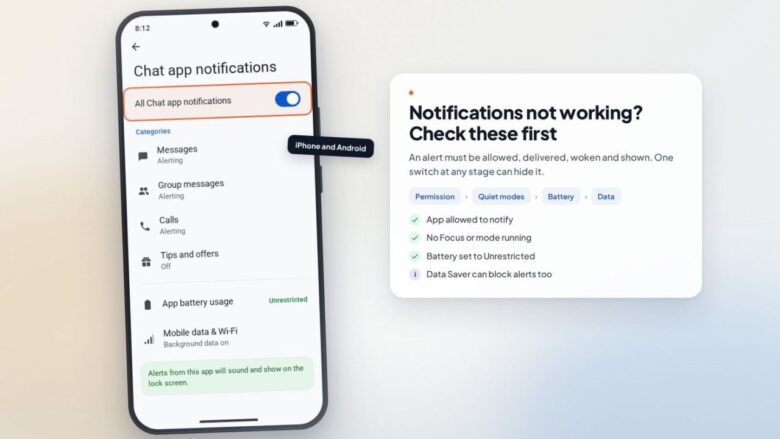
- After that, tap on Notifications to open the detailed menu.
- Next, ensure the master toggle labeled Allow notifications is turned completely ON.
- Finally, check the individual notification categories (like Direct Messages, Reminders, or Alerts) to ensure none of them are silenced individually.
*Verification:* Ask a friend to send you a quick test message on that specific app. Your phone should immediately buzz and display the banner at the top of your screen.
Official Reference: Change notification settings on Android — Google Android Help
Step 2: Disable Do Not Disturb and Focus Modes
Modern Android phones include powerful digital wellbeing features like Do Not Disturb (DND), Bedtime Mode, and Focus Mode. These modes are designed to filter out distractions during work or sleep hours. Unfortunately, they often activate automatically on a hidden schedule and silence your alerts completely without showing any visual banners.
To disable hidden silent modes safely:
- First, swipe down twice from the very top of your screen to open the full Quick Settings panel.
- Next, look carefully for the Do Not Disturb, Bedtime, or Focus Mode tiles.
- Then, if any of these specific tiles are highlighted in a bright color, tap them once to turn them off completely.
- After that, open your Settings app and navigate to Sound & vibration or Notifications.
- Next, tap on Do Not Disturb and review any automatic schedules listed there.
- Finally, delete or modify any strict schedules that overlap with your active daytime hours.
*Verification:* Your status bar will no longer show a small moon or a circle-with-a-line icon. Consequently, standard system sounds and vibrations will return to normal instantly.
Official Reference: Limit interruptions with Do Not Disturb — Google Android Help
Step 3: Turn Off Aggressive Battery Optimization
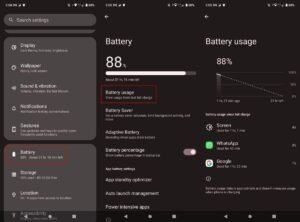
Smartphone manufacturers like Samsung, Xiaomi, and Huawei add highly aggressive battery-saving software to their custom operating systems. This software forcefully kills background applications to preserve battery power. Consequently, the killed app cannot connect to the internet to receive new push notifications. Therefore, you must whitelist essential apps from these strict battery rules immediately.
To whitelist your applications properly:
- First, open the Settings app and tap on Apps.
- Next, select the misbehaving application from the list.
- Then, tap on Battery or App battery usage.
- After that, change the optimization setting directly to Unrestricted or No restrictions.
- Next, if you use a Samsung device, go to Settings > Battery > Background usage limits > Sleeping apps and ensure your app is not listed there.
- Finally, if available on your brand, toggle on the Auto-start option so the app launches automatically when the phone boots.
*Verification:* Close the application completely from your recent apps menu. The app will now stay secretly awake in the background, ensuring immediate delivery of all incoming alerts.
Official Reference: Optimize battery life on Android — Google Android Help
Step 4: Enable Background Data Usage
Push notifications require a tiny but constant internet connection to function correctly. If you enabled Android’s “Data Saver” mode, the operating system actively blocks hidden apps from using your cellular data. As a result, alerts only arrive when you connect to Wi-Fi. Therefore, you must grant critical apps permission to use cellular data in the background.
To allow background internet access securely:
- First, open the Settings app and tap on Apps.
- Next, select the specific app you want to fix.
- Then, tap on Mobile data & Wi-Fi or Data usage.
- After that, ensure the Background data toggle is turned ON.
- Next, if you actively use the system-wide Data Saver, turn on the toggle for Unrestricted data usage for this app.
- Finally, test your connection by turning off Wi-Fi and relying strictly on cellular data.
*Verification:* Send a test message while disconnected from Wi-Fi. The notification should arrive instantly over your 4G or 5G cellular network.
Official Reference: Reduce and manage data usage on Android — Google Android Help
Step 5: Check Lock Screen Privacy Settings
Sometimes, notifications arrive perfectly in your pull-down shade, but they refuse to light up your lock screen. This specific behavior is usually caused by strict privacy settings. Android allows users to hide sensitive message contents on the lock screen to protect personal information from strangers. However, a misconfigured setting can hide the alert entirely.
To adjust your lock screen visibility safely:
- First, open the Settings app on your smartphone.
- Next, tap on Notifications.
- Then, look for the section labeled Notifications on lock screen.
- After that, tap it and select Show conversations, default, and silent or Show all notification content.
- Next, ensure you have not enabled any manufacturer-specific settings that block lock screen pop-ups.
- Finally, press the power button to lock your phone and wait for a test message.
*Verification:* When the message arrives, your screen will light up automatically. Furthermore, you will see a preview banner without needing to unlock the device completely.
Official Reference: Control notifications on the lock screen — Google Android Help
Step 6: Clear the Application Cache and Update
Finally, temporary software files often become deeply corrupted after a major Android operating system update. This corrupted cache blocks the application from communicating with the Google push notification servers correctly. Clearing this temporary cache and updating the software usually resolves these complex communication bugs instantly.
To clear the cache and update securely:
- First, open the Google Play Store and search for the broken application.
- Next, tap the Update button if a newer version is available.
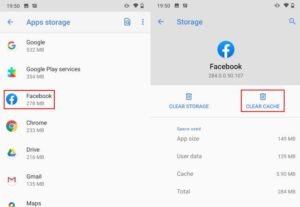
- Then, open your phone’s Settings app and navigate to Apps.
- After that, tap on the specific app and select Storage & cache.
- Next, tap the Clear cache button only. (Do not tap Clear Data, as that deletes your login information).
- Finally, restart your smartphone completely to apply all the fresh changes.
*Verification:* Your phone will reboot smoothly. The application will request a fresh, clean connection to the push servers, fixing the silent delivery issue completely.
Official Reference: Find and update apps on Android — Google Play Help
What Not to Do When Fixing Notifications
Please avoid these highly dangerous mistakes to protect your device’s security and battery health:
- Do not download third-party “Notification Fixer” apps from unknown sources. These apps are often massive scams that try to steal your personal message data secretly.
- Do not tap “Clear Data” or “Clear Storage” inside the app settings unless you have securely backed up your account login and passwords. Clearing data wipes the app completely.
- Also, do not permanently disable your system-wide battery saver. Use it wisely during emergencies, but whitelist your critical apps as shown in Step 3.
- Finally, do not ignore pending Android system updates. Major updates often contain critical patches for background server communication issues.
Official Reference: Help protect your phone against harmful apps — Google Android Help
Frequently Asked Questions
Why do notifications only arrive when I open the app?
Usually, this specific behavior indicates that Android is forcefully killing the app in the background to save battery or data. When you open the app, it wakes up and connects to the internet, downloading all the pending messages at once. To fix this instantly, you must change the app’s battery optimization setting to “Unrestricted” and enable background data usage.
Official Reference: Understand battery optimization rules — Google Android Help
Can a VPN or Ad-Blocker block my push notifications?
Yes, absolutely. Push notifications rely on Google’s Firebase Cloud Messaging (FCM) servers. If you run a strict Virtual Private Network (VPN) or a system-wide ad-blocker, it might accidentally block the communication ports required by FCM. Consequently, the alerts will fail to reach your phone. Disabling the VPN temporarily is a great way to test this theory.
Official Reference: Connect to a Virtual Private Network (VPN) — Google Android Help
Why is there no sound when I receive a notification?
If the banner appears but makes no sound, the specific notification category is likely set to “Silent”. Alternatively, your phone might be connected to a Bluetooth audio device in another room, routing the sound away from the phone’s speakers. Ensure your Bluetooth is off and check the “Sound” option within the app’s notification category menu.
Official Reference: Change volume, sound, and vibrate settings — Google Android Help
Final Thoughts and Official Resources
In conclusion, restoring silent Android notifications is a highly logical process that never requires risky technical hacks. First, always inspect the individual app permissions and disable hidden Do Not Disturb schedules. Next, turn off aggressive battery optimization and allow background data usage for critical applications. Finally, clear the cache and restart your device. By following these exact safe steps, you will never miss an important message again.