Feeling like someone is secretly watching you through your smartphone is a terrifying experience. Suddenly, you might notice a strange green dot glowing at the top of your screen. Furthermore, you might see highly targeted advertisements about a completely private conversation you just had. This alarming situation makes many people fear their own expensive devices. In a panic, some users tape over their camera lenses or buy brand-new phones. However, a listening smartphone rarely means you have been targeted by a highly advanced hacker. In most cases, you simply granted camera or microphone access to a random gaming application by mistake.
Therefore, you must reclaim your digital privacy using a safe, step-by-step approach. First, we will analyze your recent hardware usage through the Privacy Dashboard. Next, we will use the traditional Permission Manager to audit your installed software. Then, we will restrict camera and microphone access safely. After that, we will configure your precise location settings. Finally, we will enable automatic permission revocation. Consequently, this detailed method will lock down your personal data completely. Here at Money 4 Dummy, we know that protecting your digital identity is the smartest way to prevent costly cyber theft.
Official Reference: Control app permissions on Android — Google Android Help
Step 1: Open the Android Privacy Dashboard
Modern Android versions include a brilliant visual tool called the Privacy Dashboard. This powerful security feature tracks exactly which applications used your hardware over the last twenty-four hours. Consequently, you do not have to guess if an app is spying on you. You can see a minute-by-minute timeline of its secret background activity. Therefore, checking this dashboard is your absolute best first step.
To analyze your recent privacy timeline safely:
- First, open the main Settings app on your Android smartphone.
- Next, scroll down the main menu and tap directly on Privacy.
- Then, tap on the Privacy dashboard option located at the very top.
- After that, look at the colorful circle chart summarizing your daily hardware usage.
- Next, tap on Location, Camera, or Microphone to view the detailed timeline.
- Finally, review the exact timestamps to see if any unknown apps accessed your hardware while you were sleeping.
*Verification:* You will see a clear chronological list showing exactly when each application turned on your microphone or camera. If you spot a calculator app accessing your location at 3:00 AM, you have successfully identified a massive security threat.
Official Reference: Manage your Android privacy settings — Google Android Help
Step 2: Use the Master Permission Manager
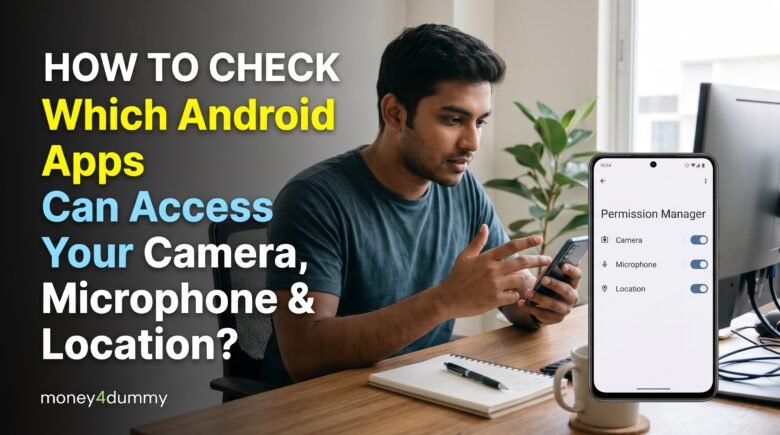
If your older smartphone does not have the Privacy Dashboard, you must use the traditional Permission Manager. This comprehensive tool categorizes every single application based on what hardware it can legally access. As a result, you can view all apps that have location tracking enabled simultaneously. This bird’s-eye view makes auditing your phone incredibly fast and efficient.
To audit your entire application list securely:
- First, open your Settings app and tap on Apps or App Management.
- Next, tap the three vertical dots in the top right corner and select Permission manager.
- Then, look at the categorized list containing Camera, Contacts, Location, and Microphone.
- After that, tap on the Camera category to open its specific access list.
- Next, review the applications listed under the “Allowed all the time” or “Allowed only while in use” sections.
- Finally, identify any suspicious applications that have no logical reason to look through your camera lens.
*Verification:* The screen will cleanly divide your apps into “Allowed” and “Not allowed” sections. Consequently, you can easily spot rogue applications hiding among your trusted daily software.
Official Reference: Review app permissions on Android — Google Play Help
Step 3: Revoke Camera and Microphone Access Safely
Once you identify a suspicious application, you must revoke its access immediately. Many cheap flashlight apps or simple offline games secretly request microphone access to record your conversations for targeted advertising. Therefore, cutting off this access protects your personal privacy instantly. Crucially, revoking permissions will never delete the actual application from your phone.
To restrict hardware access properly:
- First, stay inside the Permission manager screen from the previous step.
- Next, tap on the suspicious app (for example, a random barcode scanner) under the Camera or Microphone list.
- Then, look at the three access choices provided on the new screen.
- After that, change the selection from “Allow” strictly to Don’t allow (or Deny).
- Next, ignore any warning pop-ups claiming that the app might stop functioning correctly.
- Finally, press the back arrow and repeat this exact process for every single untrusted application.
*Verification:* The restricted application will instantly drop down into the “Not allowed” section of your list. The next time you open that specific app, it will be physically impossible for it to turn on your microphone.
Official Reference: Change app permissions — Google Android Help
Step 4: Configure Precise vs. Approximate Location
Location data is incredibly valuable to shady advertising networks. Consequently, many apps beg for your location data constantly. However, a local weather app does not need to know your exact street address. It only needs to know your general city. Therefore, modern Android versions allow you to provide a fake, “Approximate” location to protect your exact home address.
To downgrade an app’s location accuracy securely:
- First, open the Permission manager and tap on the Location category.
- Next, tap on an application like a news reader or a fast-food delivery app.
- Then, look for the toggle switch labeled Use precise location.
- After that, turn this specific toggle switch completely OFF.
- Next, change the main permission setting to Ask every time or Allow only while using the app.
- Finally, ensure that only critical navigation apps (like Google Maps) are allowed to use your precise location.
*Verification:* The restricted application will still function perfectly, but it will only see your general zip code or city. As a result, your exact home and workplace coordinates remain completely hidden from corporate databases.
Official Reference: Manage location settings on Android — Google Android Help
Step 5: Enable Automatic Permission Revocation
Over the years, you probably downloaded dozens of applications that you opened once and completely forgot about. Unfortunately, these forgotten apps retain their powerful permissions forever. If a hacker buys that old app from its original developer, they can instantly activate your camera remotely. Therefore, you must use Android’s automated cleanup feature to disarm old software.
To enable the automatic safety lock:
- First, open your Settings app and navigate to the Apps menu.
- Next, tap on See all apps to view your entire installed software library.
- Then, tap on an older application that you rarely use anymore.
- After that, scroll down its specific “App Info” page until you find the Unused apps section.
- Next, turn ON the toggle switch labeled Pause app activity if unused (or Remove permissions if app is unused).
- Finally, ensure this setting is active for all your secondary applications.
*Verification:* If you do not open the app for a few months, Android will silently strip away all its permissions. Consequently, your phone cleans up its own security vulnerabilities automatically, saving you massive amounts of time.
Official Reference: Permissions for unused apps — Google Play Help
Step 6: Monitor the Green Privacy Indicator Dots
Lastly, Google introduced a brilliant hardware-level warning system in recent Android updates. Whenever any application accesses your camera or microphone, a small green dot illuminates in the top-right corner of your screen. This dot acts exactly like the physical recording light on a professional video camera. Therefore, monitoring this dot is your ultimate daily security check.
To use the privacy indicators effectively:
- First, unlock your phone and watch the top right corner of the status bar carefully.
- Next, if you see a green dot or a tiny green camera/microphone icon appear unexpectedly, stop what you are doing.
- Then, swipe down quickly from the top of the screen to open the notification shade.
- After that, tap directly on the green dot icon in the expanded menu.
- Next, a small window will instantly reveal the exact name of the application secretly recording you.
- Finally, tap the app name in that window to jump straight to its permission page and block it forever.
*Verification:* By aggressively monitoring this green dot, you hold absolute power over your device. No application can ever record your audio or video secretly without triggering this visual alarm.
Official Reference: Check camera and microphone access — Google Android Help
What Not to Do When Managing Permissions
Please avoid these highly dangerous mistakes to protect your smartphone from severe operational failures and hidden malware. At Money 4 Dummy, we want to ensure your device remains perfectly safe:
- Do not blindly tap “Allow” every time an app asks for permission during installation. Always read the pop-up carefully. A wallpaper app never needs to read your private text messages.
- Do not download third-party “Privacy Scanner” apps from unknown websites. Ironically, these fake security apps are often the worst spyware disguised as helpful tools.
- Also, do not revoke permissions from critical system applications (apps with the Android robot icon). Denying access to core system tools will cause your phone to crash endlessly.
- Finally, do not leave your Bluetooth turned on constantly in public spaces. Hackers can use open Bluetooth connections to bypass basic app permissions completely.
Official Reference: Help protect your phone against harmful apps — Google Android Help
Frequently Asked Questions
Why does a simple offline game need my location or camera?
Usually, free offline games demand location and camera permissions strictly for data harvesting. They track your daily movements and sell this valuable data to third-party advertising agencies. Furthermore, they might use the camera to serve augmented reality (AR) advertisements. Therefore, you should always deny these requests immediately. The game will usually still play perfectly fine without them.
Official Reference: Understand why apps request permissions — Google Play Help
Can an application turn on my microphone when my phone is locked?
If you granted an app the “Allow all the time” permission, it technically has the power to listen in the background while your screen is completely off. This is exactly how digital voice assistants like Google Assistant hear you say “Hey Google.” However, standard third-party apps should only ever have the “Allow only while using the app” setting to prevent hidden lock-screen recording.
Official Reference: How your voice recordings are used — Google Assistant Help
What should I do if an app refuses to open without permissions?
Sometimes, developers lock their applications aggressively. If you deny microphone access to a messaging app, it might crash or refuse to load the home screen entirely. If an app acts this hostile over an unnecessary permission, it is a massive red flag. You should immediately uninstall the application and find a safer, privacy-focused alternative on the Google Play Store.
Official Reference: Uninstall, disable, and delete apps — Google Play Help
Final Thoughts and Official Resources
In conclusion, controlling your Android app permissions is a highly logical process that protects your personal privacy and financial security. First, always check the Privacy Dashboard to catch rogue applications red-handed. Next, use the Permission Manager to revoke camera and microphone access from untrusted games. Finally, limit your location tracking strictly to approximate coordinates. By following these exact safe steps provided by Money 4 Dummy, you will guarantee that your expensive smartphone works for you, not against you.