Waking up to a completely dead Android phone is a modern nightmare. You charged your device to a perfect 100 percent before going to sleep. However, the morning alarm fails to ring because the battery vanished entirely overnight. Furthermore, this heavy battery drain ruins your entire morning routine. An idle smartphone sitting on a nightstand should only lose a tiny fraction of its charge. Therefore, losing 20 percent or more indicates a serious software conflict or a rogue application.
Consequently, you must investigate this power loss using a safe, step-by-step approach. First, we will analyze your built-in battery usage statistics. Next, we will restrict rogue applications running secretly in the background. Then, we will optimize your network settings for nighttime efficiency. Finally, we will adjust your display features and location services securely. As a result, this detailed method will guarantee your phone holds its charge perfectly. Here at Zodiacs Miracle, we prioritize completely safe troubleshooting methods that never require downloading dangerous third-party applications.
Official Reference: Get the most life from your Android battery — Google Android Help
Step 1: Inspect the Built-in Battery Usage Graph
Primarily, Android includes a fantastic diagnostic tool built right into the core system settings. This specific tool records exactly which applications consume your battery power throughout the night. Therefore, you do not need to guess which app is secretly causing the problem. Identifying the exact culprit is the absolute best first step in any battery troubleshooting process.
To analyze your battery statistics properly:
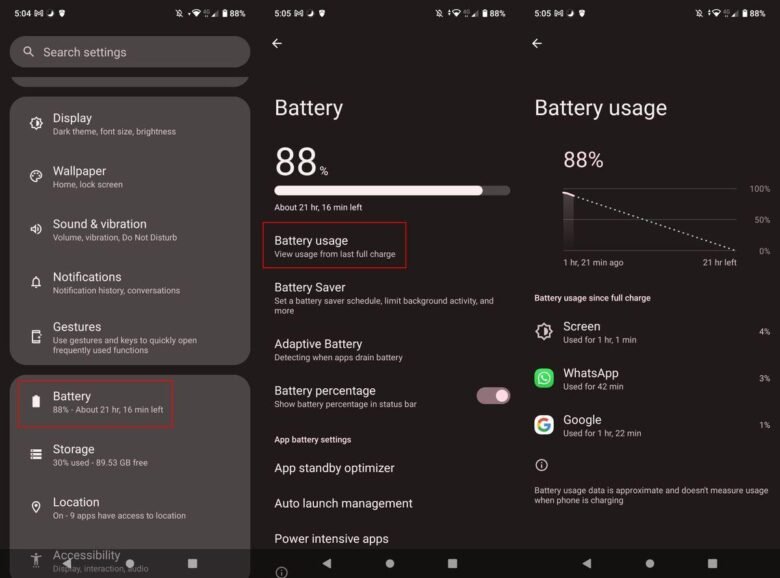
- First, open the main Settings app on your Android smartphone immediately after waking up.
- Next, scroll down the menu and tap on Battery or Battery & Device Care.
- Then, tap on the Battery Usage option to open the detailed diagnostic graph.
- After that, look closely at the timeline covering your exact sleeping hours (e.g., 12 AM to 7 AM).
- Finally, scroll down beneath the graph to see the exact percentage of power consumed by each specific application.
*Verification:* You will clearly identify one or two applications dominating the top of the list. Often, social media apps or unoptimized games cause this massive overnight spike.
Official Reference: Check battery level and usage on Android — Google Android Help
Step 2: Restrict Background App Activity Strictly
Once you identify the problematic application, you must stop it from running constantly. Many apps aggressively refresh their data in the background even when your screen is completely off. Consequently, they drain your battery heavily while pulling new messages or emails from the internet. Therefore, you must restrict their background activity securely to preserve your power.
To restrict rogue applications safely:
- First, return to the Battery Usage screen from the previous diagnostic step.
- Next, tap directly on the name of the misbehaving application in the list.
- Then, look for the Background Restriction or Battery Optimization setting on the new page.
- After that, change the setting from “Optimized” or “Unrestricted” strictly to Restricted.
- Finally, repeat this exact process for any other heavy applications you rarely use.
*Verification:* The restricted application will no longer run secretly while you sleep. Consequently, your overnight battery drain will decrease significantly and immediately.
Official Reference: Restrict apps with high battery use — Google Android Help
Step 3: Manage Always-On Display and Wake Gestures
Moreover, modern Android phones feature an Always-On Display (AOD) option. This feature shows the time and notification icons on a black screen constantly. While this looks incredibly cool, it slowly consumes your battery power all night long. Therefore, turning off or scheduling the AOD saves a massive amount of idle energy over an eight-hour period.
To optimize your display settings securely:
- First, open your phone Settings app from the home screen.
- Next, tap on Display or Lock Screen settings depending on your phone model.
- Then, locate the Always-On Display toggle switch in the menu.
- After that, turn it completely off to save maximum power instantly.
- Alternatively, tap on the AOD settings and choose Show as scheduled.
- Finally, set the schedule to turn off the display completely during your normal sleeping hours.
*Verification:* Lock your smartphone screen using the power button. The screen should turn completely pitch black without showing any floating clocks or bright notification icons.
Official Reference: Manage screen and display settings — Google Pixel Help
Step 4: Check for Poor Cellular Signal and Wi-Fi Scanning
Furthermore, poor network reception is a silent, hidden battery killer. If your bedroom has weak cellular coverage, your phone works incredibly hard to find a better signal. Consequently, the internal modem consumes massive amounts of power constantly trying to reconnect to the cell tower. Therefore, managing your network connections overnight is absolutely crucial for battery health.
To optimize your network connections overnight:
- First, swipe down from the top of your screen to open the Quick Settings panel.
- Next, tap the Airplane Mode icon before going to sleep. This shuts off the struggling cellular radio.
- Then, manually turn your Wi-Fi back on if you still need to receive emergency internet messages.
- After that, open the Settings app and search for Wi-Fi Scanning.
- Finally, turn off Wi-Fi and Bluetooth scanning to stop the phone from constantly searching for nearby networks in the background.
*Verification:* Your cellular signal bars will disappear entirely, replaced by a small airplane icon. As a result, your phone’s internal radio will finally rest, saving dozens of battery percentage points.
Official Reference: Fix mobile network connections on Android — Google Android Help
Step 5: Disable Unnecessary Location Services (GPS)
Another major cause of overnight drain is hidden location tracking. Many weather apps, delivery services, and fitness trackers constantly ping your GPS coordinates. GPS technology requires a massive amount of electrical energy to communicate with satellites in space. Therefore, you must revoke unnecessary location permissions safely to stop this heavy drain.
To revoke background location permissions securely:
- First, open your Settings app and tap on Location.
- Next, tap on App Location Permissions to view a categorized list of software.
- Then, review the specific list of applications labeled “Allowed all the time”.
- After that, tap on any non-essential application (like a fast-food or shopping app).
- Finally, change its permission securely to Allow only while using the app.
*Verification:* A small green dot or GPS icon will no longer appear randomly at the top of your screen. Consequently, your phone will stop wasting power tracking your stationary bedroom.
Official Reference: Manage location settings on Android — Google Android Help
Step 6: Clear Cache and Update the Operating System
Finally, corrupted temporary files can cause the Android operating system to panic and drain power unexpectedly. System cache files sometimes break after a major software update. Therefore, clearing the temporary cache and installing fresh software patches resolves deep system bugs perfectly without risking your data.
To update your system and clear temporary bugs:
- First, open your Settings app and navigate to Software Update or System Update.
- Next, download and install any pending security patches immediately.
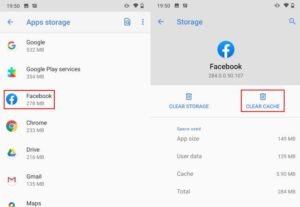
- Then, open your device’s built-in Device Care or Storage manager.
- After that, tap the Optimize Now or Clean Cache button to remove temporary junk files.
- Finally, restart your smartphone normally to apply the fresh software changes securely.
*Verification:* Your phone will boot up perfectly smooth. The cache wipe completely deletes corrupted temporary data without touching your precious personal photos, contacts, or text messages.
Official Reference: Check and update your Android version — Google Android Help
What Not to Do When Fixing Battery Drain
Please avoid these highly dangerous mistakes to protect your battery’s physical health and your device’s security:
- Do not download third-party “Task Killer” or “Battery Saver” apps from the Play Store. These apps actually cause more battery drain by constantly forcing closed apps to restart in a vicious cycle.
- Do not put your smartphone inside a refrigerator or freezer to cool it down. Extreme condensation will destroy the internal motherboard instantly.
- Also, do not completely drain your battery to 0 percent every single day. Deep discharges severely damage modern lithium-ion batteries over time.
- Finally, do not use cheap, uncertified charging cables. A damaged cable can short-circuit the battery and cause permanent hardware failure.
Official Reference: Protect your device from hardware damage — Google Hardware Help
Frequently Asked Questions
Is losing 5% of battery overnight considered normal?
Yes, absolutely. A completely healthy Android smartphone will typically lose between 3% and 5% of its battery over an eight-hour sleeping period. The phone still needs a tiny bit of power to maintain the internal clock, receive emergency cellular signals, and keep the alarm ready. Therefore, if your drain is below 5%, your battery is in perfect health.
Official Reference: Understand normal battery consumption — Google Android Help
Does enabling “Dark Mode” actually save battery life?
Yes, but only if your smartphone has an OLED or AMOLED screen. On these specific screens, dark mode turns off the individual black pixels completely, requiring zero power. However, if your phone has an older LCD screen, the backlight stays on constantly regardless of the colors. Consequently, dark mode will not save any battery on LCD displays.
Official Reference: Use Dark theme on your Android device — Google Android Help
Is it safe to leave my Android phone plugged in all night?
Yes, it is entirely safe. Modern Android smartphones contain highly advanced power management chips. Once the battery reaches 100%, the phone physically cuts off the electrical current from the charger. It simply uses wall power to run the device instead of the battery. Therefore, you cannot “overcharge” a modern smartphone.
Official Reference: Charging safety and battery health — Google Android Help
Final Thoughts and Official Resources
In conclusion, fixing overnight battery drain on your Android device is a very straightforward process. First, always inspect your battery usage graph to catch misbehaving applications. Next, restrict background activities and turn off your Always-On Display. Finally, manage your GPS location permissions and use Airplane Mode in areas with weak cellular signals. By following these exact safe steps, you will wake up to a reliable, fully charged phone every single morning.