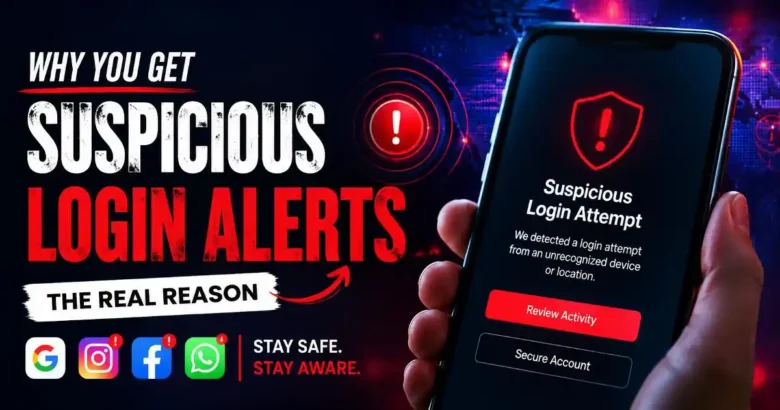
Waking up to an email warning about a “New login from Russia” is absolutely terrifying. Suddenly, you imagine unknown hackers stealing your sensitive banking details. Furthermore, you worry about your private family photos being leaked across the internet. This alarming situation makes many users panic instantly. Consequently, they aggressively click the bright red “Secure My Account” button inside the email without thinking. However, clicking that specific link is often the exact trap the hackers designed. In most cases, the terrifying email is actually a fake phishing scam.
Therefore, you must investigate this digital alert using a highly secure, step-by-step approach. You cannot simply trust every single email that arrives in your inbox. Here at Money 4 Dummy, we strongly believe that protecting your digital identity is the smartest way to protect your physical wealth. Consequently, we designed this investigative guide to help you become a cybersecurity expert. We will systematically analyze the alert, bypass fake phishing traps, and secure your compromised account completely. Ultimately, you will lock down your private data without accidentally handing your passwords directly to a scammer.
Official Reference: Help secure a hacked or compromised account — Google Account Help
Strategy 1: Identify Phishing Scams Instantly
Before you take any defensive action, you must determine if the alert is actually real. Hackers send millions of fake security alerts every single day. They design these fake emails to look exactly like official communications from Google, Microsoft, or Apple. If you click the link inside their fake email, they will steal your password instantly. Therefore, avoiding the provided link is the absolute most critical diagnostic strategy.
How to Audit a Security Email Safely:
- First, open the terrifying email, but do absolutely not click any links or buttons inside it.
- Next, look very closely at the sender’s actual email address at the very top.
- Then, check for subtle spelling mistakes. For example, a scammer might use
security@g00gle.cominstead of the officialgoogle.comdomain. - After that, hover your mouse cursor slowly over the “Secure Account” button without clicking it.
- Next, look at the bottom-left corner of your web browser to see the hidden destination URL.
- Finally, if the hidden URL looks completely random and suspicious, delete the email immediately.
*Verification:* By closely inspecting the sender’s true identity, you avoid the digital trap completely. Consequently, your account remains perfectly safe because you never handed your keys to the disguised hacker.
Official Reference: Protect yourself from phishing attacks — Microsoft Security
Strategy 2: Navigate to the Official Security Dashboard
If you suspect the alert might actually be legitimate, you must investigate the breach safely. You must never use the convenient links provided inside the warning email. Instead, you must travel to your account settings manually through a clean web browser window. Bypassing the email entirely guarantees you are communicating directly with the official company servers.
How to Inspect Your Account Activity Manually:
- First, open a brand-new, clean tab in your Google Chrome or Edge web browser.
- Next, type the official account URL manually (For example, type exactly
myaccount.google.comoraccount.microsoft.com). - Then, log into your account using your standard username and password.
- After that, locate the Security tab located in the main navigation menu.
- Next, scroll down until you find the section explicitly labeled Your Devices or Recent Activity.
- Finally, click Manage all devices to view a comprehensive list of every single connected phone and computer.
*Verification:* The official dashboard will display the exact location, time, and browser type of every recent login. If you do not see the foreign login listed here, the original email was definitely a fake scam.
Official Reference: See devices that have used your account — Google Account Help
Strategy 3: Execute a Remote Device Log Out
What if you check the official security dashboard and actually see a strange device connected to your account? In this terrifying scenario, a hacker successfully bypassed your password. They are currently inside your account reading your private emails. Therefore, you must act instantly to sever their connection and throw them out of your digital property.
How to Kick Hackers Offline Securely:
- First, stay inside the Your Devices list on the official security dashboard.
- Next, click directly on the suspicious device that you do not recognize (like an unknown Windows PC in another country).
- Then, look for a bright red or bold button labeled Sign out or Remove Device.
- After that, click the Sign Out button aggressively to kill the active digital session.
- Next, confirm your choice when the system asks if you are absolutely sure.
- Finally, repeat this exact process for any other old, unused smartphones listed on the page.
*Verification:* The remote session is terminated instantly. As a result, the hacker’s screen will suddenly flash an “Authentication Required” error, and they will lose all access to your private data immediately.
Official Reference: Sign out of your account everywhere — Microsoft Support
Strategy 4: Establish an Unbreakable Digital Defense
After kicking the hacker offline, you must change the locks on your digital doors. If you only change your password, advanced hackers can easily steal the new password using hidden malware. Therefore, you must establish an unbreakable secondary defense wall. Activating Two-Factor Authentication (2FA) is the absolute best way to stop unauthorized logins permanently.
How to Activate Two-Factor Authentication Safely:
- First, return to the main Security menu inside your account dashboard.
- Next, locate the setting labeled 2-Step Verification or Two-Factor Authentication.
- Then, click the Get Started button and enter your newly created, highly complex password.
- After that, choose Authenticator App as your primary verification method instead of text messages. (Text messages can be intercepted easily by clever hackers).
- Next, download the official Google Authenticator or Microsoft Authenticator app on your smartphone.
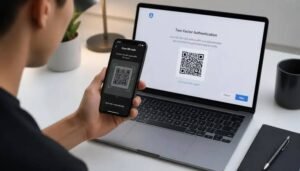
- Finally, scan the QR code displayed on your computer screen using the smartphone app to link them securely.
*Verification:* The next time anyone tries to log into your account, the server will demand a constantly changing 6-digit code. Consequently, even if a hacker steals your password again, they cannot enter without physically holding your personal smartphone.
Official Reference: Turn on 2-Step Verification — Google Account Help
Strategy 5: Audit Third-Party App Connections
Sometimes, hackers do not even need your password to access your account. Over the years, you probably granted dozens of random websites permission to “Sign in with Google” or “Sign in with Microsoft”. If one of those random gaming websites gets hacked, the criminals can use that hidden digital bridge to enter your main account silently. Therefore, you must destroy these forgotten bridges immediately.
How to Revoke Dangerous App Permissions:
- First, navigate back to your main account Security dashboard.
- Next, scroll down completely to the bottom of the page.
- Then, look for a section labeled Third-party apps with account access.
- After that, click the Manage third-party access link to view the entire list.
- Next, click on any old game, shopping app, or unknown service that you no longer actively use.
- Finally, click the Remove Access button to destroy the digital connection permanently.
*Verification:* The suspicious application will disappear from the trusted list instantly. As a result, the background software can no longer read your emails or track your hidden calendar events.
Official Reference: Manage third-party apps with account access — Google Account Help
Financial Traps You Must Avoid
At Money 4 Dummy, our mission is to ensure you never waste money on predatory technology scams. Please avoid these highly dangerous financial traps when dealing with hacked accounts:
- Never Pay Fake Ransom Demands: If a hacker emails you demanding Bitcoin to keep your account safe, never pay them. They are simply trying to scare you into sending untraceable funds.
- Do Not Buy Fake Antivirus Software: If a warning pops up claiming you must buy a specific security tool to fix your hacked account, close the window. It is a massive scam designed to steal your credit card details.
- Avoid Reusing Compromised Passwords: If your breached password was also used for your bank account, change your banking password immediately. Hackers always try the same password across multiple financial websites.
Official Reference: Protect yourself from tech support scams — Microsoft Security
Frequently Asked Questions
Why does my own login show a completely different city?
This incredibly common issue happens because of how mobile networks route internet traffic. If you log in using your cellular 4G or 5G data, your Internet Service Provider (ISP) might process that connection through a server tower located three hundred miles away. Furthermore, using a Virtual Private Network (VPN) will artificially change your login location to another country entirely. If the login time matches your exact activity, it is almost certainly just you.
Official Reference: Understand login locations and IP addresses — Google Account Help
What should I do if the hacker already changed my password?
If you cannot log into your account at all, you must use the official Account Recovery process. Go to the login screen and click the “Forgot Password” link. The system will ask you highly specific security questions to verify your true identity. Furthermore, it will attempt to send a recovery code to your backup email address or registered phone number. You must answer these questions as accurately as possible from your normal home Wi-Fi network.
Official Reference: Tips to complete account recovery steps — Google Account Help
Final Thoughts and Next Steps
In conclusion, diagnosing an unrecognized login alert is a highly logical process that absolutely requires a calm mind. First, always isolate the problem by navigating to your security dashboard manually to avoid phishing links. Next, log out any suspicious devices remotely to sever the active connection. Finally, upgrade your security by utilizing an authenticator app and revoking old third-party permissions. By following these exact investigative strategies from Money 4 Dummy, you will secure your digital identity swiftly and keep your hard-earned money strictly protected.