Hearing a loud clicking noise coming from your computer is a terrifying experience. Suddenly, your screen freezes completely, and your device refuses to restart. Furthermore, you realize that your irreplaceable family photographs and critical financial documents are trapped inside a dead machine. This catastrophic hardware failure makes many people panic instantly. Consequently, desperate users often rush to expensive data recovery labs, willingly spending thousands of dollars to rescue their digital lives.
However, paying massive emergency recovery fees is entirely preventable. Here at Money 4 Dummy, we strongly believe that proactive digital maintenance is the ultimate way to protect your wallet. Therefore, we designed this comprehensive editorial guide to help you build an impenetrable data fortress. We will systematically deploy the professional 3-2-1 strategy, configure invisible cloud syncing, and establish a local hardware vault. Ultimately, you will secure your entire digital legacy permanently without purchasing useless, overpriced software subscriptions.
Official Reference: Data Backup Options — Cybersecurity & Infrastructure Security Agency
Blueprint Step 1: Master the 3-2-1 Security Philosophy
Before plugging in any cables or downloading new software, you must understand professional data security theory. The “3-2-1 Rule” is the absolute gold standard utilized by IT experts globally. If you follow this specific formula, losing your files becomes mathematically impossible. Therefore, mastering this foundational concept is your absolute first line of defense against unexpected computer disasters.
How the Golden Rule Works:
- First, you must maintain exactly 3 total copies of your important files (your original computer files, plus two secure backups).
- Next, you must store these copies on at least 2 completely different types of media (such as an external hard drive and a remote cloud server).
- Then, you must keep 1 of those backups physically offsite. (A cloud server automatically fulfills this crucial offsite requirement).
- Finally, you must automate this entire process so human forgetfulness never ruins your security plan.
*Verification:* By distributing your precious data across multiple independent platforms, a single house fire or a targeted ransomware attack cannot destroy everything simultaneously. Consequently, you achieve total, permanent peace of mind.
Official Reference: Back up your Windows PC — Microsoft Support
Blueprint Step 2: Deploy Automatic Cloud Syncing
Your primary backup layer should operate invisibly in the background. Cloud storage services like Google Drive or Microsoft OneDrive act as a persistent, real-time safety net. These programs constantly monitor your specific folders silently. Whenever you type a new paragraph or save a new photograph, the software instantly uploads a secure copy directly to the internet. As a result, you never have to remember to click a manual backup button again.
How to Enable Seamless Cloud Protection:
- First, open your computer’s main Settings menu and navigate to the Accounts or Backup section.
- Next, select Windows Backup and click Manage sync settings for your OneDrive account.
- Then, toggle the switches for your Desktop, Documents, and Pictures folders completely to the ON position.
- After that, click the blue Start backup button and wait patiently for the initial massive upload to complete.
- Next, look at the small cloud icon in your bottom-right system tray to ensure it displays a green checkmark.
- Finally, avoid moving large files outside of these designated protected folders, as that removes them from the cloud umbrella entirely.
*Verification:* Log into your cloud account from a completely different device, like your smartphone. You will immediately see your newly saved documents sitting safely on the remote server. Therefore, your daily work is perfectly protected against sudden laptop theft.
Official Reference: Turn on OneDrive Backup — Microsoft Support
Blueprint Step 3: Construct a Local Hardware Vault
While cloud storage is absolutely fantastic for tiny documents, it struggles immensely with massive video files or full computer system images. Furthermore, cloud corporations charge expensive monthly fees for large storage capacities. Therefore, purchasing a physical external hard drive is the smartest financial investment you can make. A local hard drive allows you to recover your entire operating system incredibly fast without relying on a slow internet connection.
How to Prepare Your Physical Backup Drive:
- First, purchase a highly rated external Solid State Drive (SSD) with at least 1 Terabyte of storage capacity.
- Next, plug the provided USB cable directly into a high-speed blue USB port on your laptop or desktop.
- Then, open File Explorer and right-click on the newly discovered external drive.
- After that, select Format and ensure the file system is set strictly to NTFS (for Windows users).
- Next, click Start to erase any pre-installed factory bloatware and prepare the drive for massive data transfers safely.
- Finally, rename the drive to “Primary Local Backup” to avoid accidental deletions in the future.
*Verification:* Your computer will display a clean, completely empty storage drive ready to receive massive amounts of data instantly. Consequently, you now control a private, high-capacity digital vault perfectly suited for heavy media backups.
Official Reference: Format a hard disk partition — Microsoft Support
Blueprint Step 4: Automate OS-Level File History
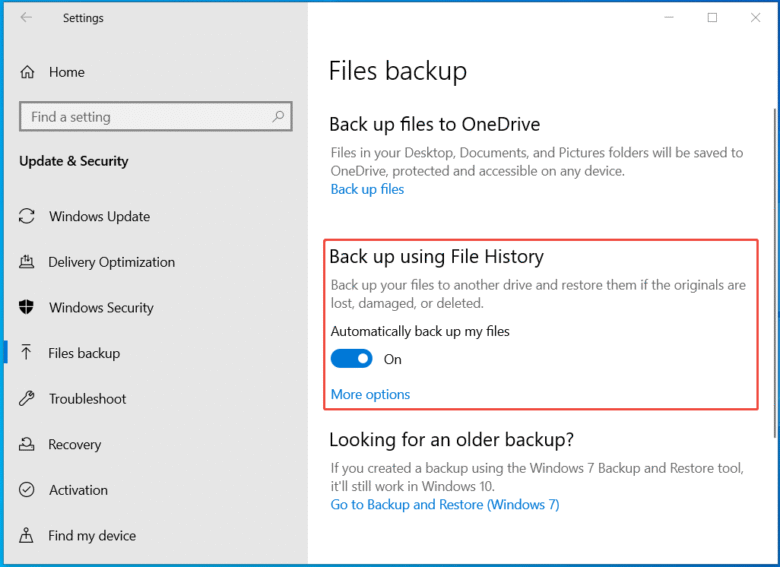
Now that your physical drive is securely connected, you must instruct your computer to utilize it automatically. Windows includes a brilliant, free built-in tool called “File History.” This native software silently copies every single modification you make to your files. If you accidentally delete a crucial paragraph in a financial spreadsheet, File History allows you to time-travel backwards and restore the document exactly how it looked yesterday morning.
How to Activate the Time-Travel Feature:
- First, click the Windows Start button, type Control Panel, and press the Enter key.
- Next, navigate to System and Security, then click directly on File History.
- Then, look at the left sidebar and click Select drive to choose your newly formatted external SSD.
- After that, click the Turn on button located in the bottom right corner of the main window.
- Next, click on Advanced settings to change how often the system saves copies (selecting “Every hour” is highly recommended).
- Finally, leave the external drive plugged into your computer frequently so the background software can execute its job without interruption.
*Verification:* A green checkmark will appear next to the “File History is on” text. Furthermore, you will see the exact timestamp of your most recent successful backup operation displayed prominently on the screen.
Official Reference: Backup and Restore in Windows — Microsoft Support
Blueprint Step 5: Execute the Critical Fire Drill
A digital backup plan is completely worthless if you do not actually know how to recover your files during a terrifying emergency. Many people diligently back up their data for years, only to discover the files are deeply corrupted when they finally need them. Therefore, you must proactively test your recovery system while your computer is still perfectly healthy. Performing a mock recovery drill guarantees your digital safety net actually holds weight.
How to Verify Your Emergency Recovery System:
- First, create a brand-new, temporary text document on your computer desktop and name it “Emergency Recovery Test”.
- Next, wait approximately one hour for File History and OneDrive to secure this specific file automatically.
- Then, permanently delete the test document from your desktop by pressing Shift + Delete.
- After that, open File History, click on Restore personal files, and navigate to the Desktop folder within the archive.
- Next, locate the deleted “Emergency Recovery Test” file in the digital timeline.
- Finally, highlight the file and click the large green Restore button to send it back to its original location instantly.
*Verification:* The missing test document will magically reappear on your computer desktop immediately. Consequently, you now possess absolute confidence that your entire backup architecture functions flawlessly under severe pressure.
Official Reference: Recover lost or deleted files — Microsoft Support
Financial Traps You Must Avoid
At Money 4 Dummy, our primary mission is to protect your bank account from predatory technology scams. Please strictly avoid these highly dangerous financial traps when building your backup strategy:
- Never Pay for “Premium Backup Optimizers”: Do not purchase expensive third-party backup software subscriptions. The built-in Windows File History utility is 100% free, highly secure, and incredibly powerful.
- Avoid Unbranded USB Flash Drives: Do not buy impossibly cheap 2-Terabyte USB thumb drives from untrusted overseas websites. These are notorious “fake capacity” scams that will actively corrupt and permanently destroy your precious files.
- Do Not Rely Solely on Ransomware Payments: If a hacker encrypts your computer, never pay the demanded Bitcoin ransom. Having a disconnected external hard drive completely neutralizes their threat, saving you thousands of dollars instantly.
Official Reference: Protect your PC from ransomware — Microsoft Security
Frequently Asked Questions
Should I buy an SSD or an HDD for my local backup vault?
An HDD (Hard Disk Drive) is significantly cheaper and offers massive storage capacity, making it perfect for sitting quietly on a desk as a stationary backup vault. However, if you travel frequently, a portable SSD (Solid State Drive) is vastly superior. SSDs contain absolutely no moving mechanical parts, meaning they will survive severe drops and bumps that would instantly destroy a fragile mechanical HDD.
Official Reference: Hardware performance tips — Microsoft Support
Does a synced cloud folder protect me against computer viruses?
No, not completely. If a ransomware virus infects your main computer, it will quickly encrypt all your local files. Unfortunately, the automated cloud software will immediately sync those encrypted, broken files directly to the internet, overwriting your good backups. Therefore, you must always keep a physical external hard drive disconnected in a drawer to act as an untainted, offline fail-safe.
Official Reference: Stop Ransomware Official Guidelines — CISA
Final Thoughts and Next Steps
In conclusion, building an impenetrable file backup plan is a highly logical process that completely eliminates digital anxiety. First, always adopt the 3-2-1 rule to diversify your data portfolio. Next, configure automatic cloud syncing for your daily work and establish a local external drive for heavy system images. Finally, automate the background schedules and perform a critical restoration test to verify your safety net. By following these exact investigative strategies from Money 4 Dummy, you will permanently secure your digital legacy and keep your hard-earned money strictly in your own pocket.